
Swarm Sauce · Queenright
How to run the yard book
Queenright is the field journal for your colonies — yards, looks, harvests, traps, and the season’s work. This page is the full tour.
Start here
Ten minutes to a working book. Then keep it at the tailgate.
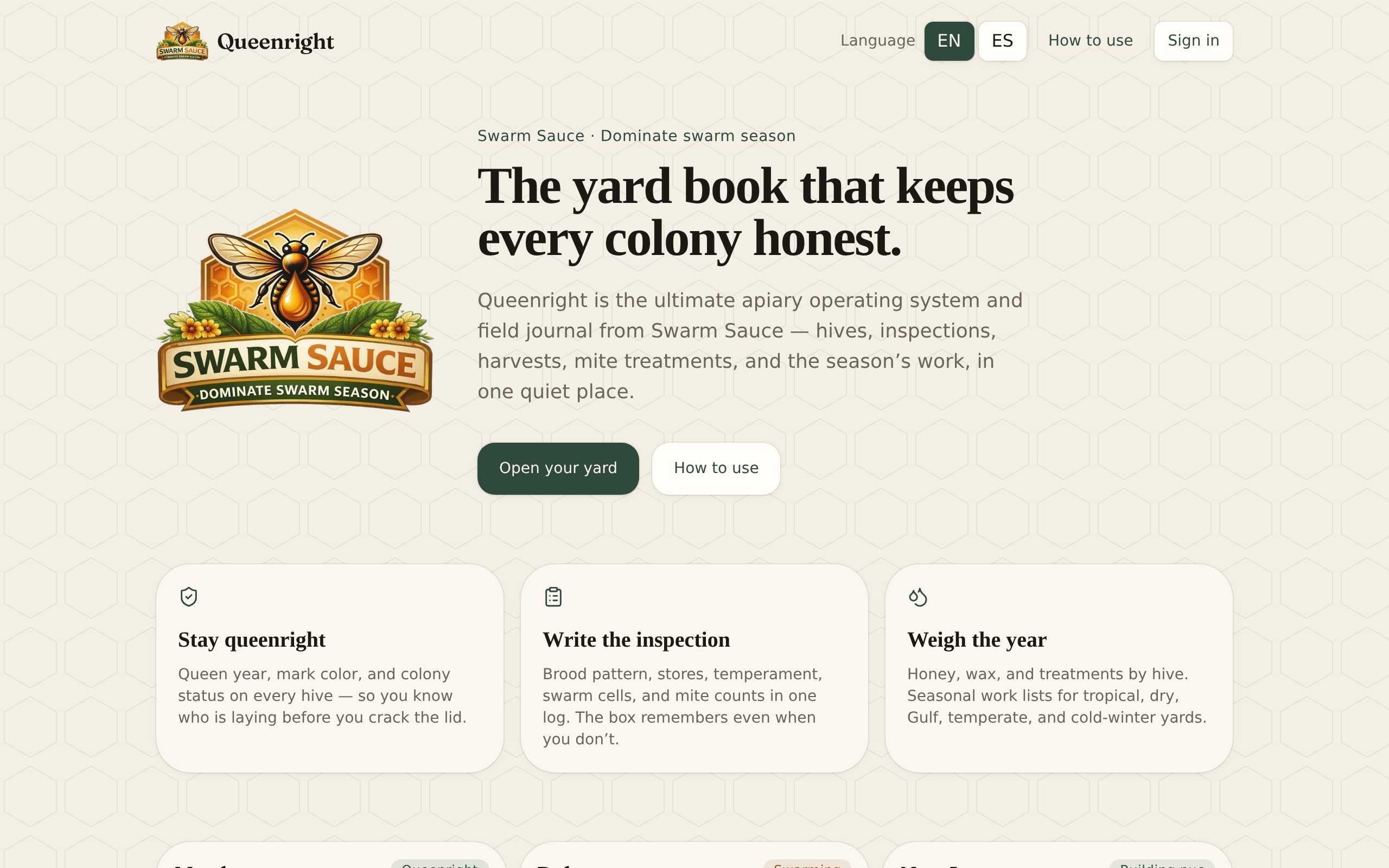
- 1Open queenrightapp.com and create an account (email, Google, or X).
- 2On Yard, tap Add yard, or Plant a sample yard to see how a full book looks.
- 3Add hives. Name them the way you call them in the apiary — Maple, Palmetto, Nuc A.
- 4After a look, tap Log inspection. That is the habit that makes the rest useful.
- 5On your phone: browser menu → Add to Home Screen. Queenright opens like an app.
Create and sign in
Your colonies stay with your account. Use the same method every time.
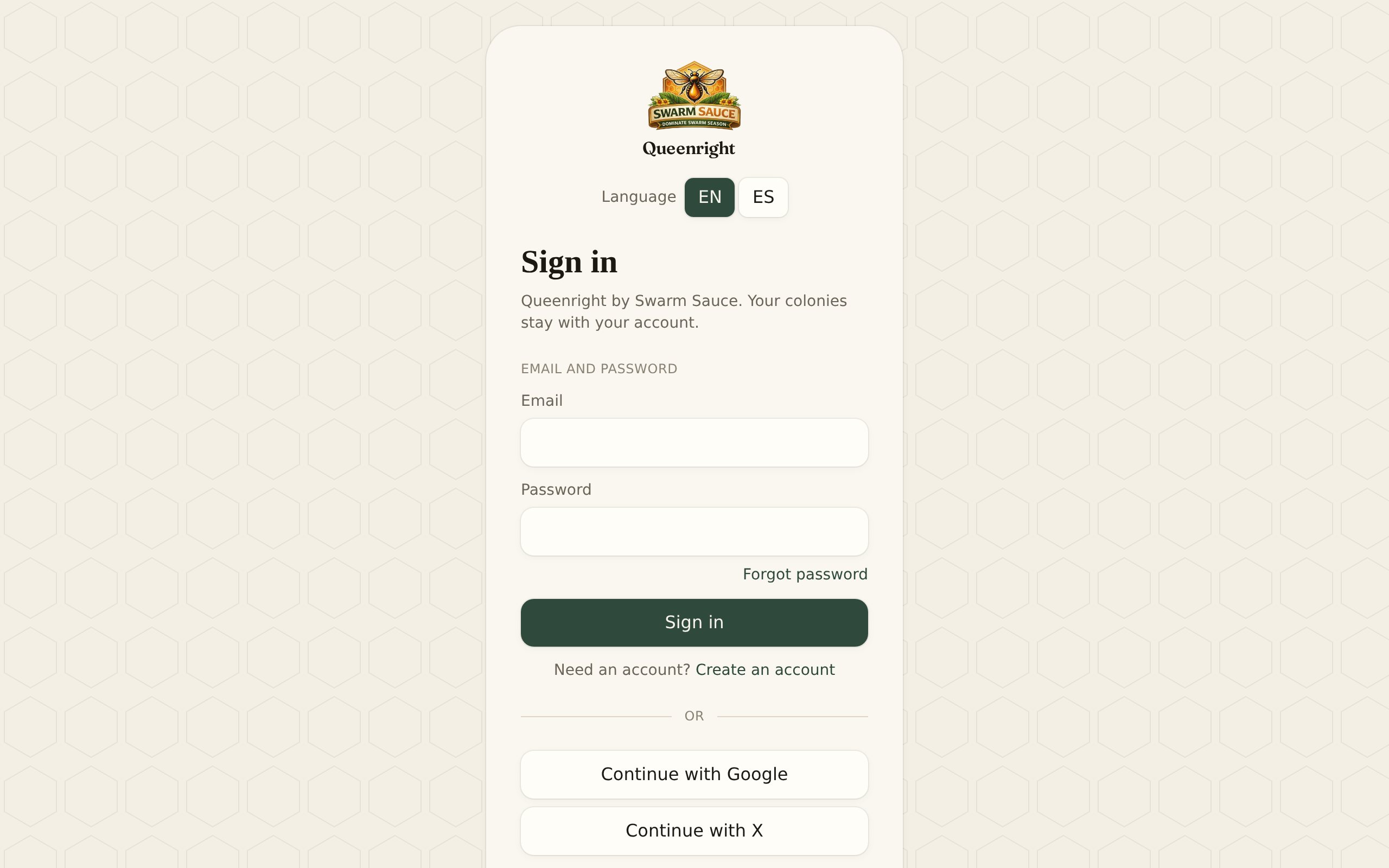
Go to Sign in. New keepers tap Create an account, enter name, email, and a password of at least 8 characters, then Create account. Or tap Google or X and approve once.
Email, Google, and X are separate doors — pick one and stick with it. If a helper sent you an invite, open that link first, then sign in; you’ll land in their yard.
Lost the password on an email account? On Sign in, tap Forgot password.
Put it on the phone
Queenright is a website that behaves like an app.
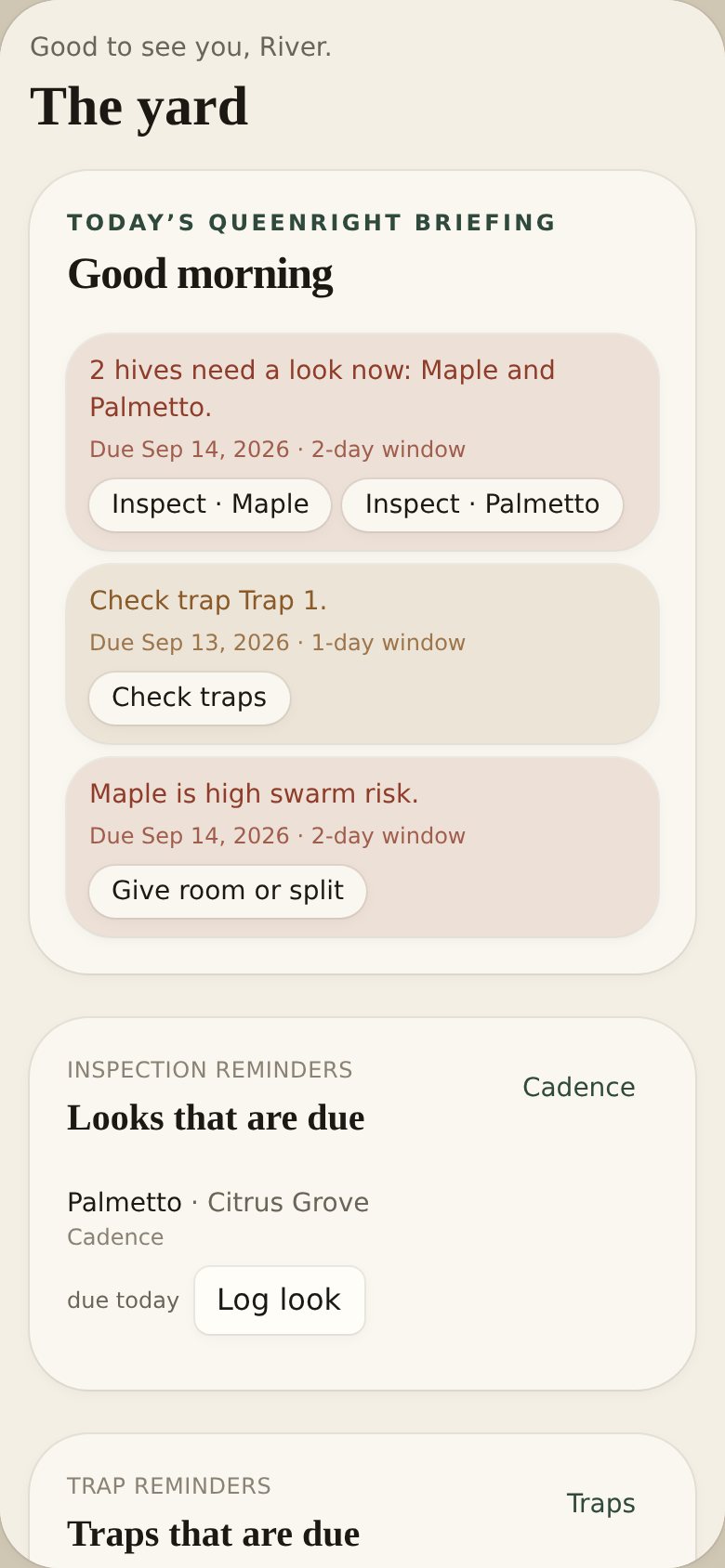
iPhone / iPad (Safari)
- 1Open queenrightapp.com in Safari and sign in.
- 2Tap Share, then Add to Home Screen.
- 3Open Queenright from the home screen next time.
Android (Chrome)
- 1Open queenrightapp.com in Chrome (not Facebook, Instagram, or Gmail’s in-app browser) and sign in.
- 2Menu (⋮) → Add to Home screen or Install app. On Android 15/16 this may say Install app.
- 3Open Queenright from the home screen. It runs full-screen, including behind the status bar and gesture bar.
- 4Allow notifications when Android asks (Android 13+). Allow microphone for memos. BroodMinder sensors need Chrome or Edge — not Samsung Internet.
Queenright is a PWA: it works on current Android with Chrome. Keep Chrome updated. If the page is text-only after an update, Chrome → site settings → Delete data, then reopen from the home screen icon.
English and Spanish
The book speaks both. Pick one and Queenright remembers it on this device.
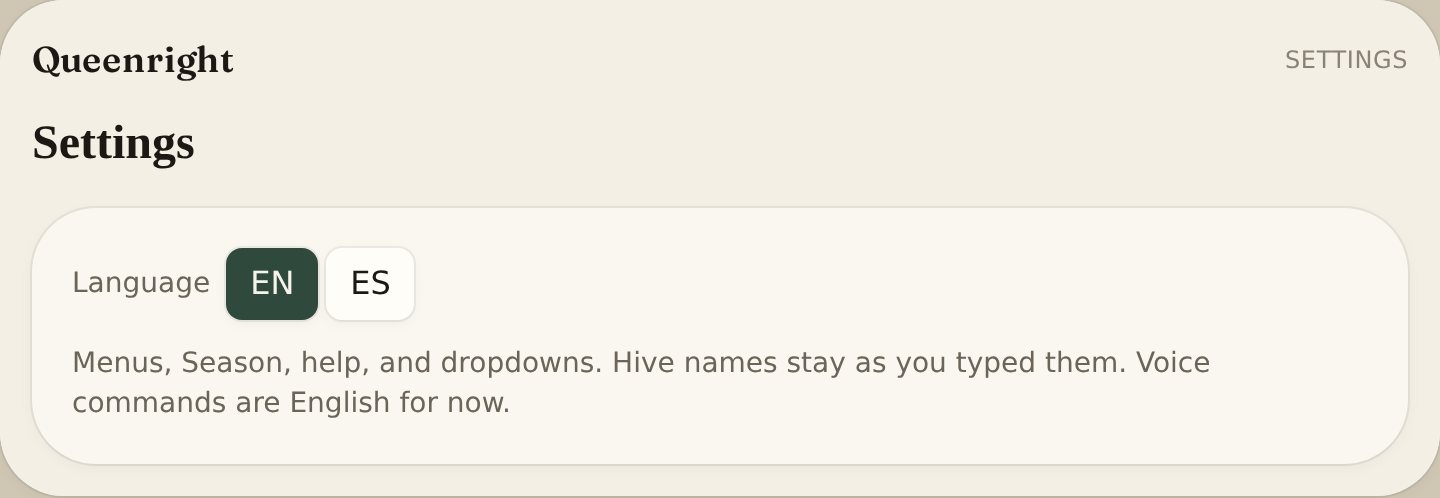
Queenright is available in English and Español. Menus, Season work lists, dropdowns, login, and this help page’s titles switch together.
Change it with the English / Español buttons at the top of this page, on the home page, on Sign in, or in Settings. If you have not picked yet, Queenright follows the phone’s language.
Hive and yard names stay as you typed them. Voice commands follow the language of the book: English or Español. Switch it and the mic switches.
Yards
A yard is an apiary — a place with one or more colonies.
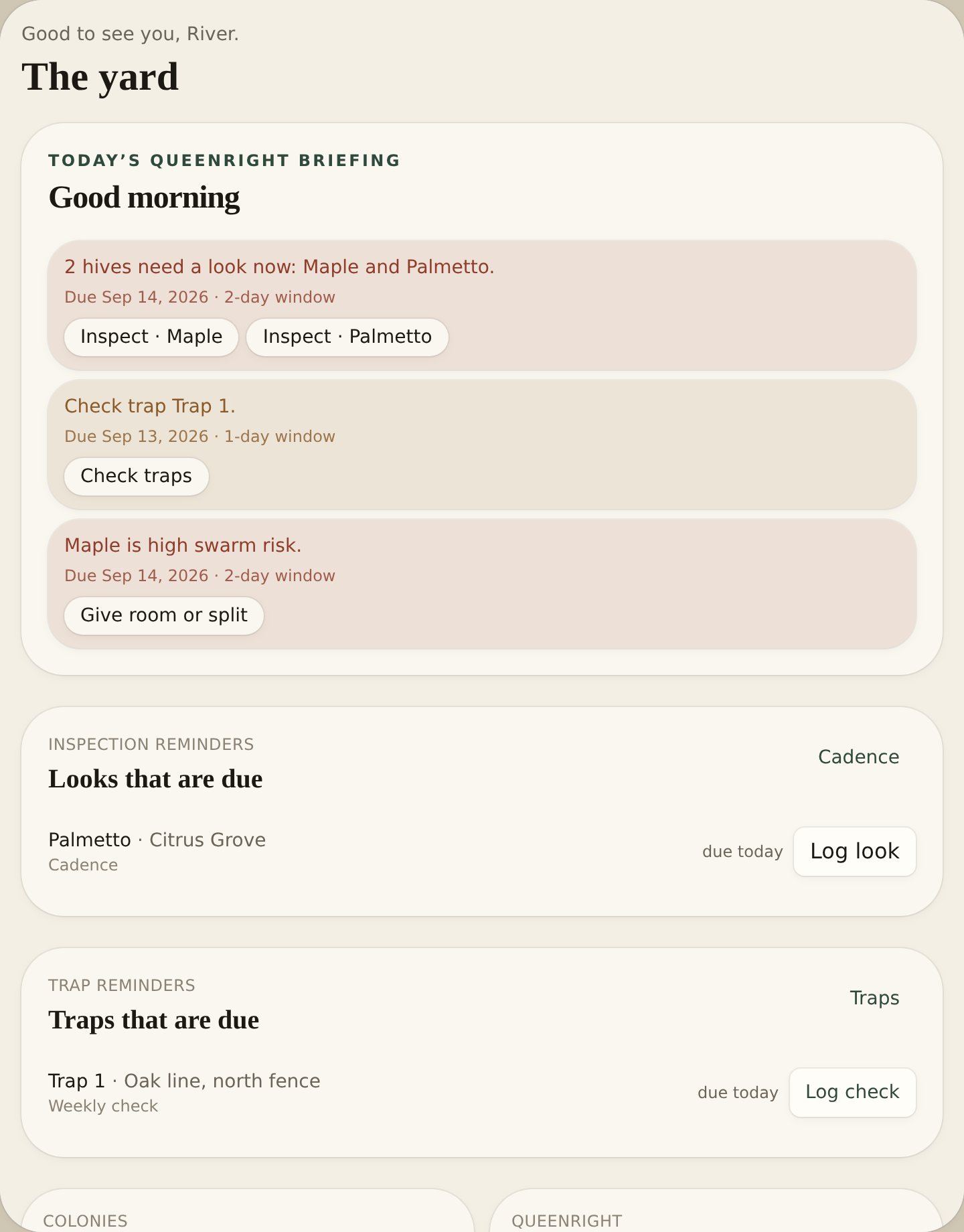
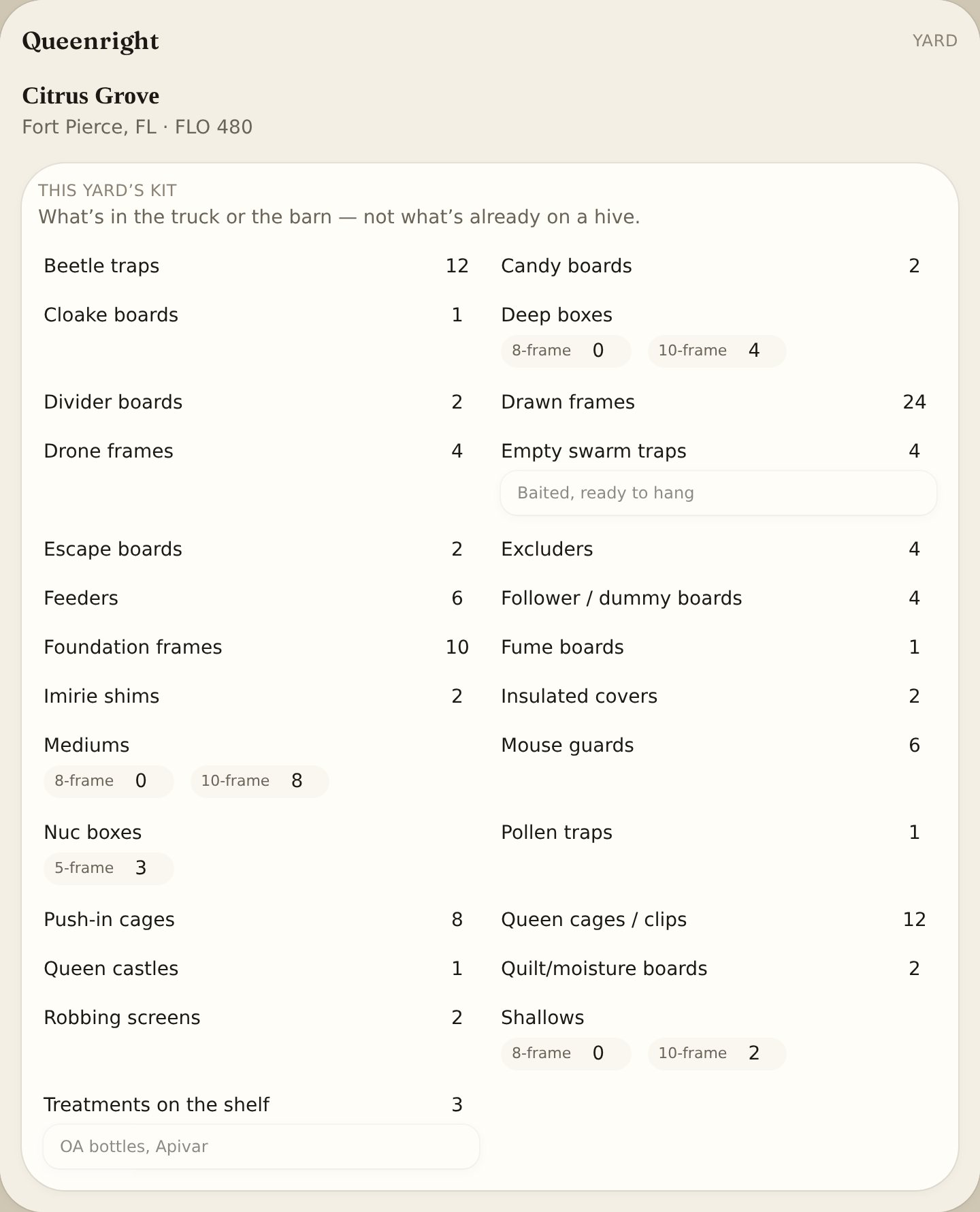
Yard is home. Tap Add yard. Give it a name and a location (Fort Pierce, the grove, the backyard). Under Owner on Edit yard, add this yard’s Apiary number if that state issued one (Florida firm number such as FLO 480). Settings has a separate inspector number — they are not the same. The yard number does not show on the yard card. Print field card and Share field card put it on the hard copy. Optional notes, map pin, and forage radius live here too. Access is the gate code, dogs, landowner, where to park — it prints on the field card. Once the yard is pinned, the National Weather Service forecast lands on this page — temp, wind, rain chance, and whether it’s a good window to crack a lid. Rain, storms, or high wind show Don’t open — leave the lid on. Neighbor spray: date they sprayed, what they used, and when they said they’d spray next. Print field card for the truck: hive names, last look, and due.
Yards list in alphabetical order (A–Z). Names with numbers sort as numbers, so Yard 10 sits after Yard 9.
Empty book? Plant a sample yard to learn the screens, then delete it when you’re ready for the real colonies. Owners can delete a yard (and every hive in it). Helpers can leave a shared yard without deleting it. Tap This yard’s equipment at the top of the yard. It is spare woodenware in A–Z order — not what’s already on a hive. Plus and minus the count. Drawn and foundation frames flag low under 8. The list is beetle traps, candy boards, Cloake boards, deep boxes, divider boards, drawn frames, drone frames, empty swarm traps, escape boards, excluders, feeders, follower / dummy boards, foundation frames, fume boards, Imirie shims, insulated covers, mediums, mouse guards, nuc boxes, pollen traps, push-in cages, queen cages / clips, queen castles, quilt/moisture boards, robbing screens, shallows, and treatments on the shelf. Hive boxes stay on the hive. Set traps stay on Traps.
Each yard has its own Apiary number. A Florida yard and a Georgia yard can differ. On Edit yard, under Owner, type that yard’s number. Settings → State apiary inspector is who to call — not this yard’s registration. Leave the yard field blank if that state has not issued a number.
Hives
Each colony is a card: queen, frames, last look, status.
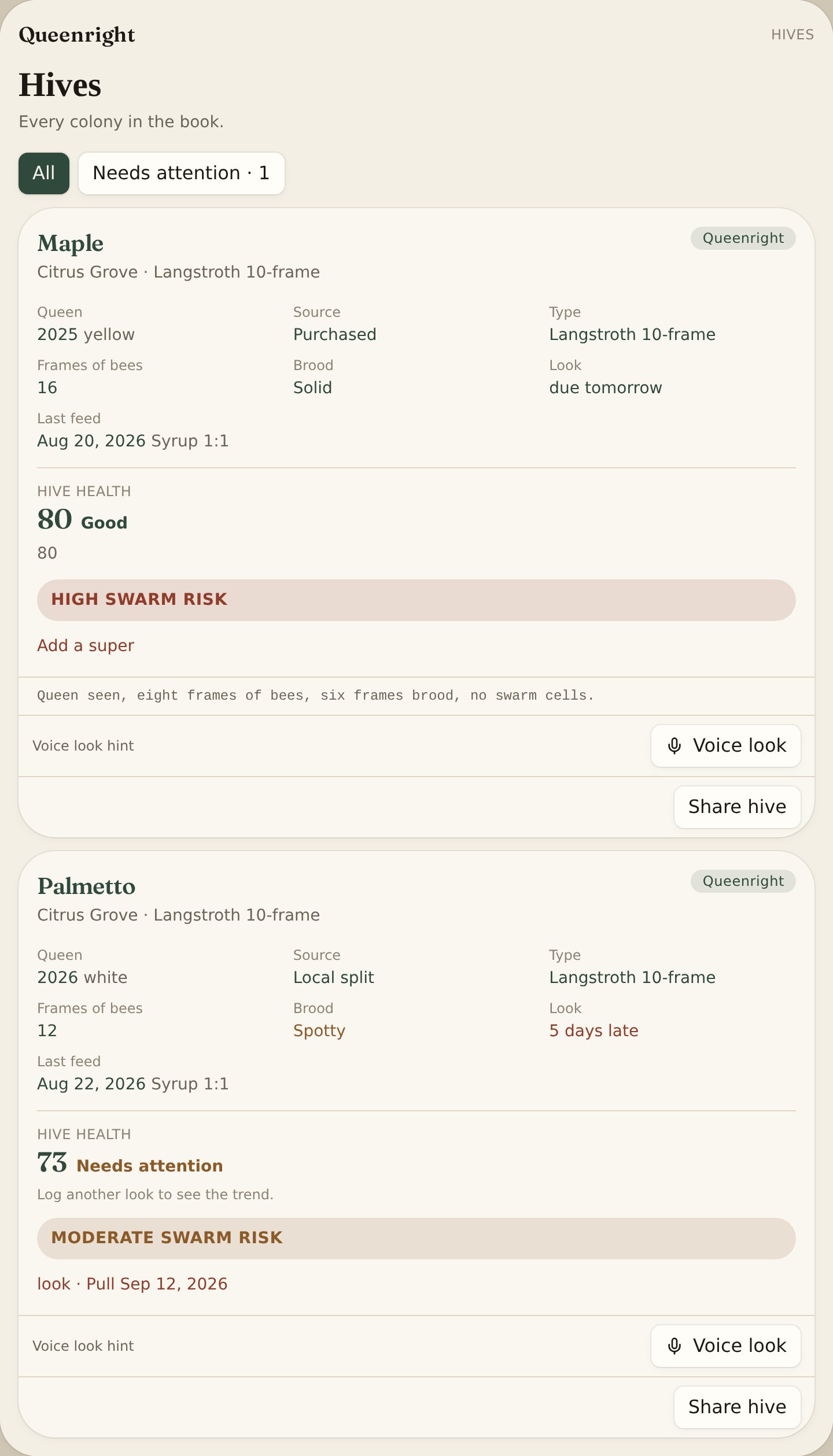
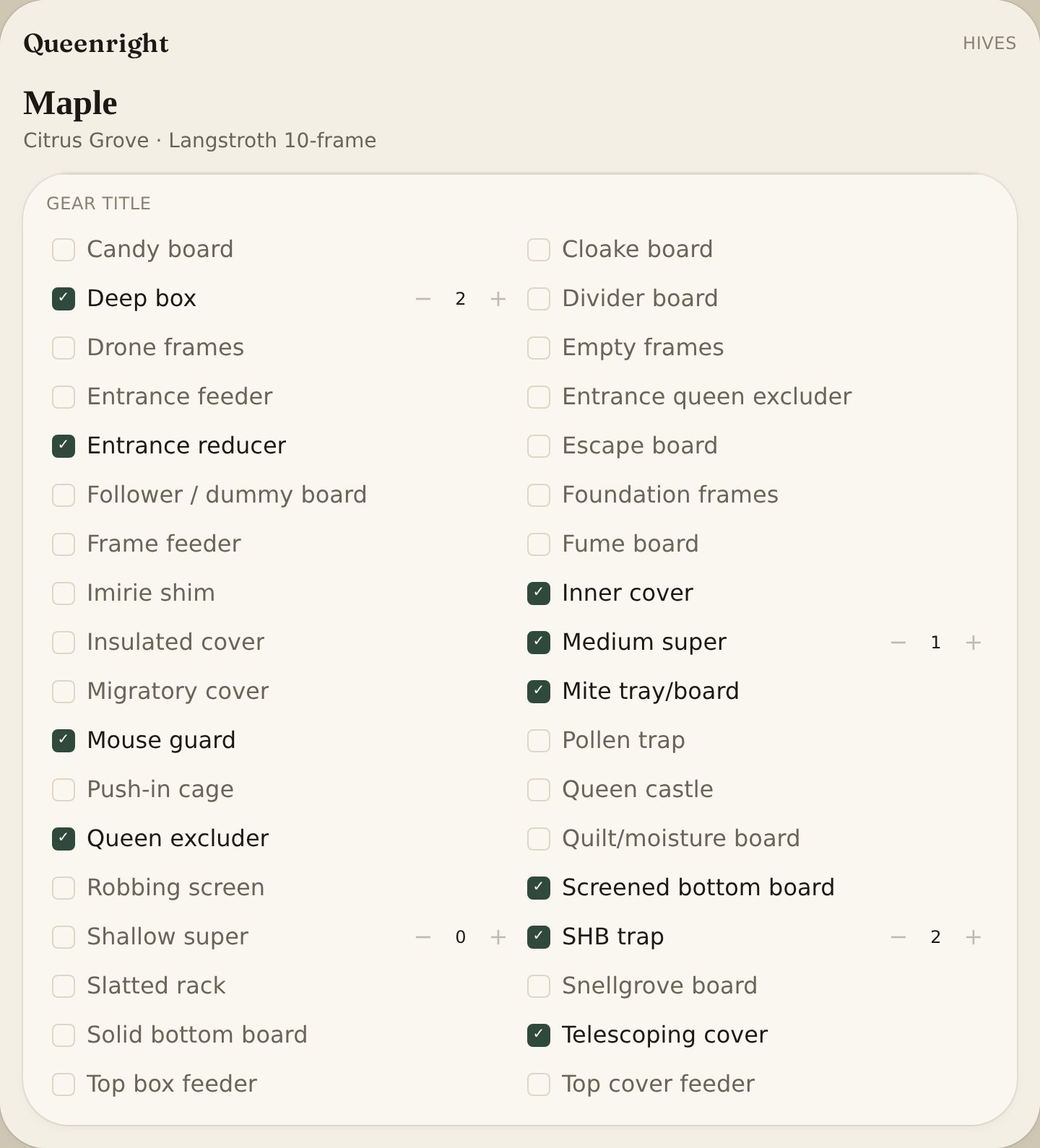
Hives → Add hive, or add from Yard. Name, type (Langstroth, nuc, Warré…), status (queenright, queenless, swarming, nuc, deadout), queen year and international mark color, source, frames, boxes, established date.
Hives list in alphabetical and numerical order: Maple before Palmetto, and 9 before 10, 11, 12. Rename a hive if you want it to sit in a different place.
Open a hive for the full story: photos, sensors, memos, inspections, harvests, treatments, and the advisor. Owners can edit or remove a hive, Split / Combine, or Requeen. Requeen archives the old queen and writes year, color, and source on the card. A split makes a new nuc and keeps both cards. A combine marks the weaker box deadout so its looks stay. Helpers can open it and log looks, not delete or split it.
Move hive (on the hive, next to Split) takes that colony to another yard you own. Pick the date — it stays on the lineage line under the name. Edit hive can change the yard too, but Move is the one that records when it rode.
On Hives, tap Needs attention. That chip is overdue looks, queenless, swarming, a next action from the last look (add a super / feed / requeen), and strips that are due to come out — not a new page. The count on the chip is how many cards match.
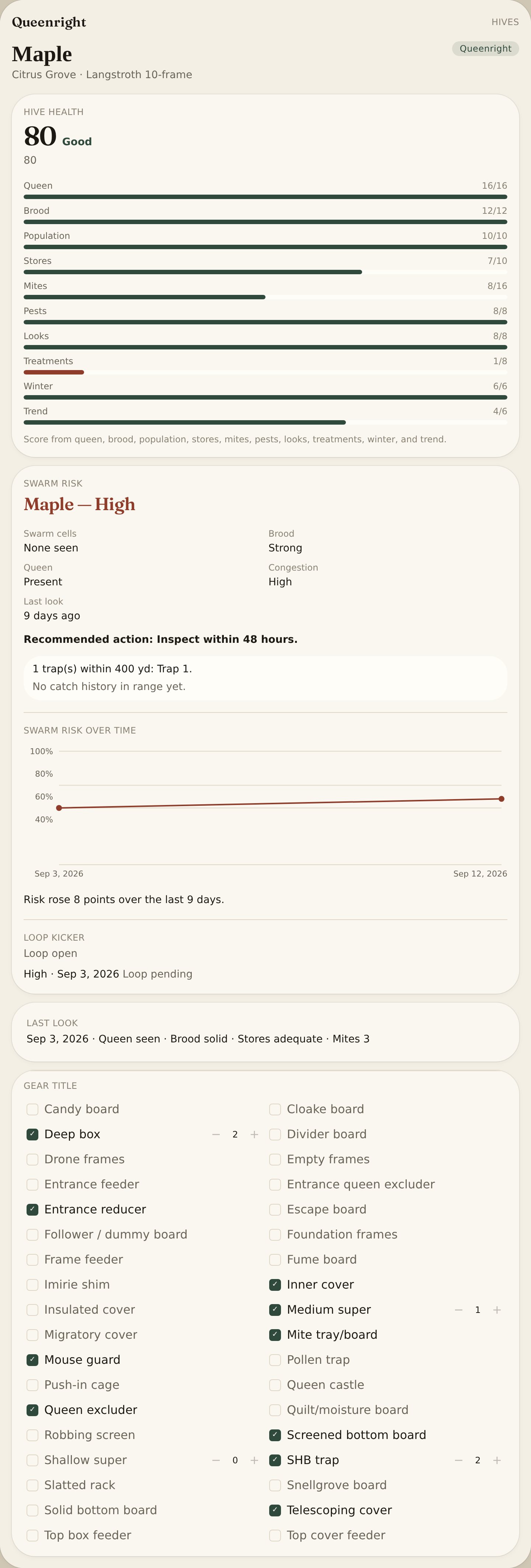
On the hive card, equipment is A–Z. Tap a checkbox for what’s on that box: bottoms, mite tray/board, slatted rack, covers (inner, migratory, telescoping, insulated, quilt/moisture), entrance reducer, mouse guard, robbing screen, frames (foundation, empty, drone), excluders, Snellgrove, Cloake, Imirie shim, follower / dummy board, divider board, candy board, queen castle, push-in cage, feeders, pollen trap, escape board, fume board. Plus and minus only Deep box, Medium super, Shallow super, and SHB trap/bait station — those counts save when you tap. Spare counts live on This yard’s equipment.
Hive health is a 0–100 score from queen, brood, stores, mites, pests, looks, treatments, winter, and trend.
Swarm risk is Low / Moderate / High / Very high from cells, brood, queen, congestion, and last look. Recommended action is when to crack the lid.
Inspections
Write what you saw. Eggs, brood, stores, mites, mood, swarm cells.
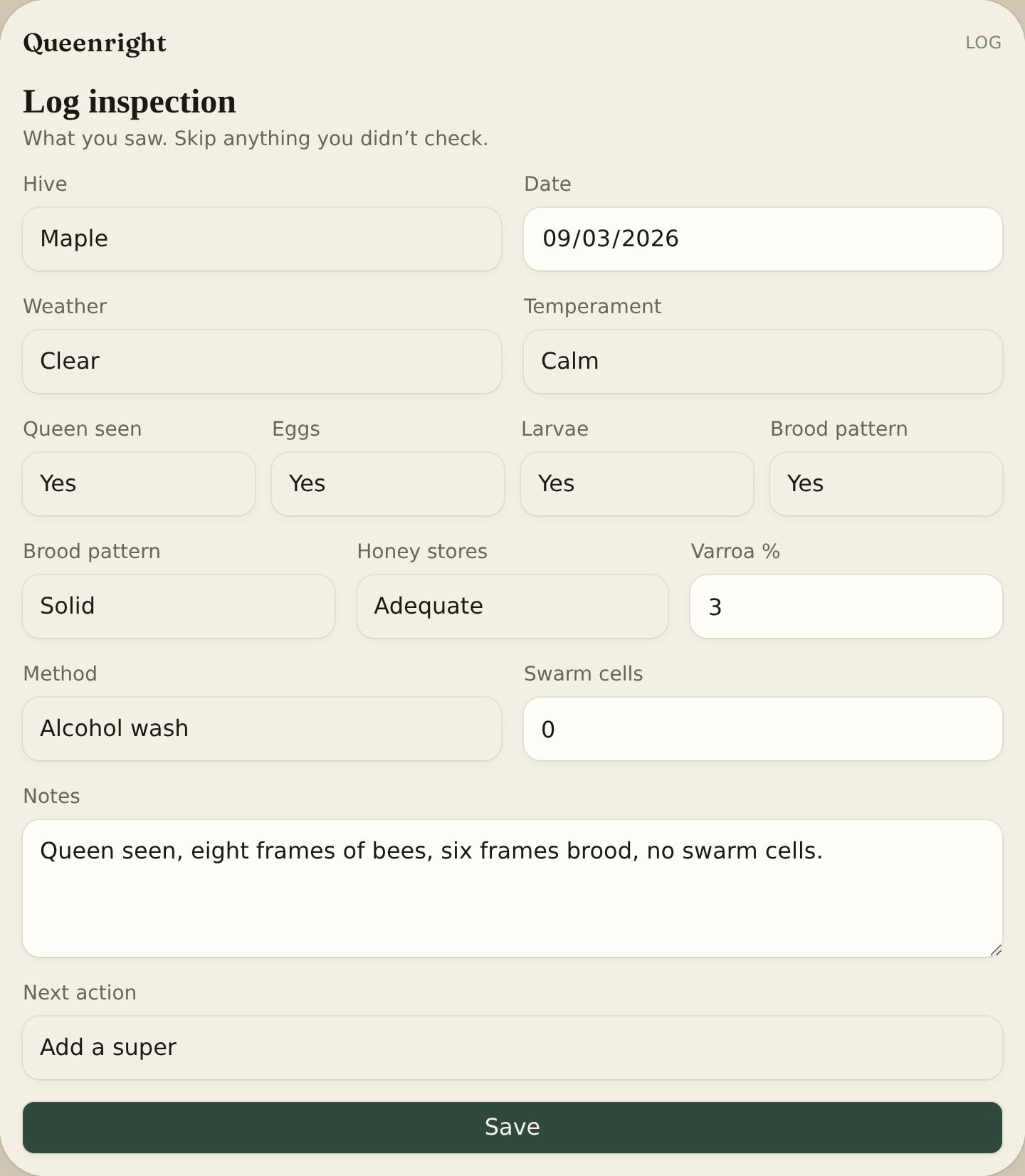
- 1Tap Log inspection from Yard, a hive, or Log.
- 2Pick the hive and the date. Fill what you actually checked — skip the rest. Next action chips (add a super, feed, requeen) stay on the hive until the next look.
- 3Save. If you’re in a dead zone, it waits on the phone and uploads when you have signal. Add one or two pictures of the comb or queen on that look — they stay with the inspection, not the hive album.
The Log page is the running diary. Three or more swarm cells will mark that hive as swarming. On the hive, Advisor asks Grok to read the book (looks, mites, treatments, harvests, winter). Ask about mites, a split, or winter, or leave the box blank. Tap Keep on this hive to save that answer in the book — it stays when you leave. Copy puts it on the clipboard. A new look starts from the last one: temperament, queen, brood, and stores carry forward — mites, swarm cells, and notes do not.
Two looks on a hive show This look vs last under Inspections: mites, stores, swarm cells, queen. Red if mites or cells went up, or stores and queen went the wrong way. One look is not enough — log the next one.
Queenright Learning
Queenright Learning compares what it called with what you saw, then tightens the next call.
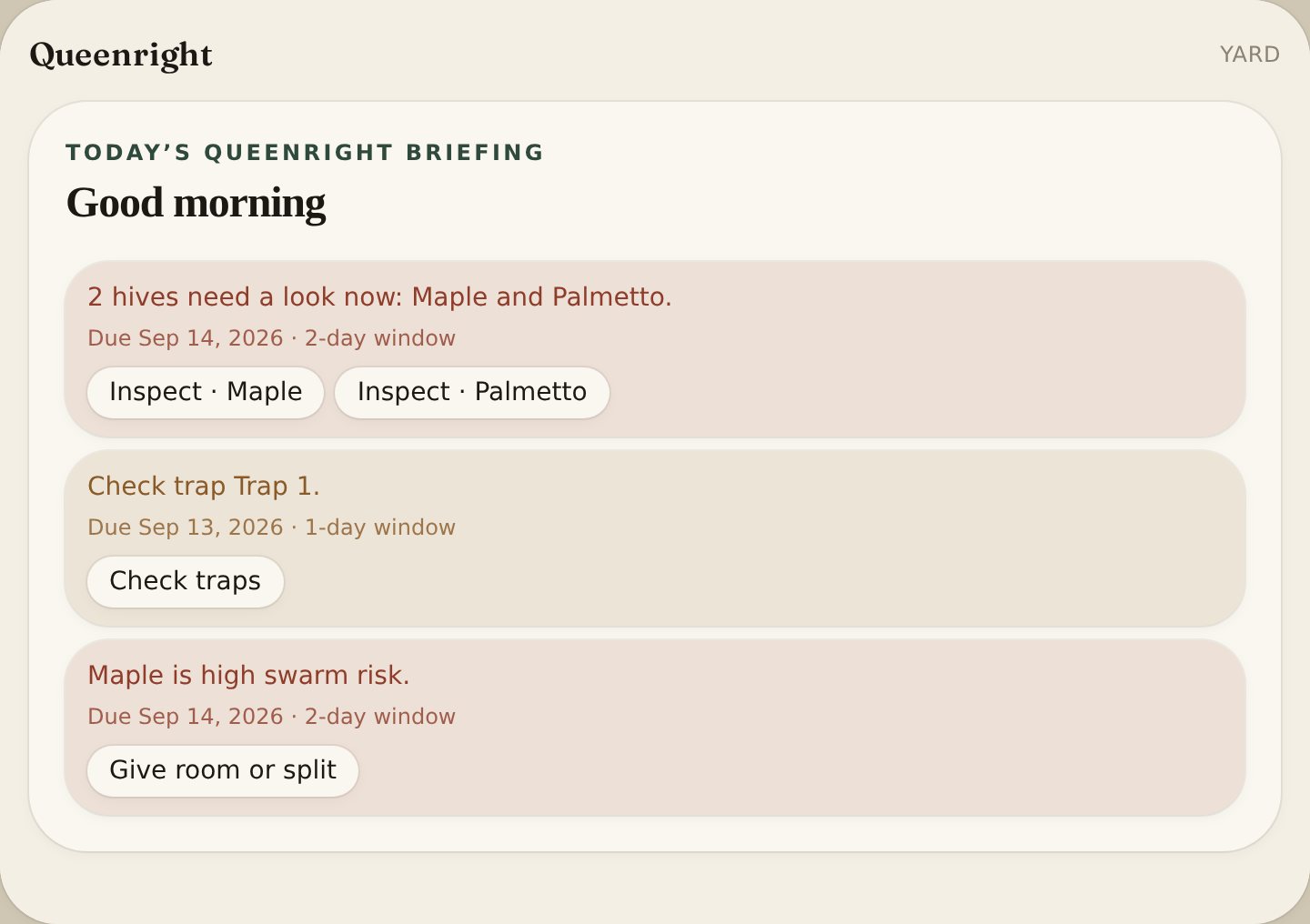
- 1Every briefing line is a prediction with a due window.
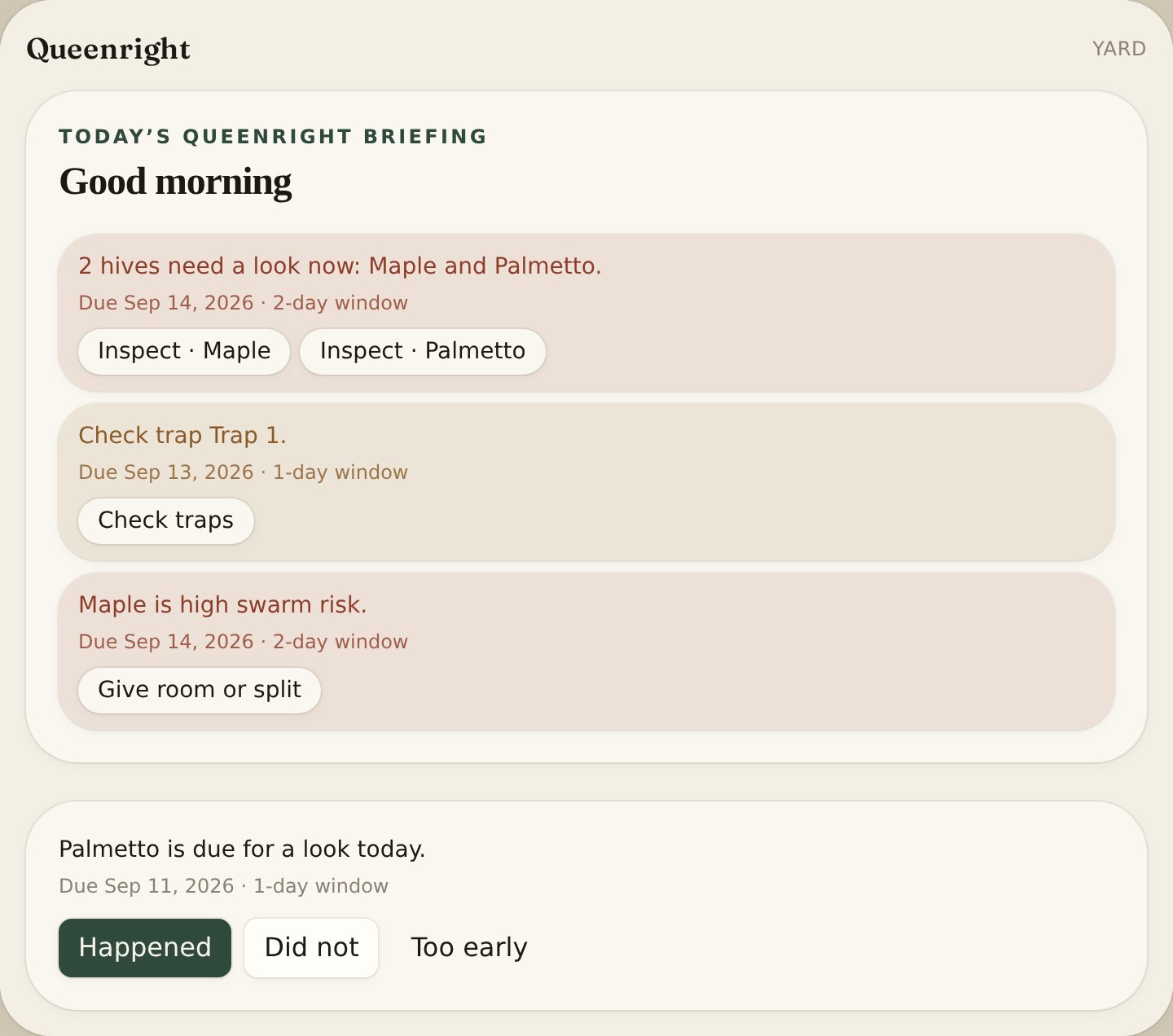
- 2Tap Happened, Did not, or Too early on that line to close it.
- 3The accuracy strip counts right, early, and miss for the month.
- 4A snapshot of the hive and yard is frozen when the call is written.
- 5A later look, trap check, queen note, or harvest can close the call for you.
- 6After eight closed swarm calls, Queenright can write a new rule set.
- 7High-risk hives show whether a trap is in range and if that trap has caught before.
- 8A high-risk hive with no trap nearby is its own call: set a trap.
- 9On Log, under search, What the book answered is the closed-call card: predicted, why, what you did, what happened, and whether a named rule moved. Crop shows the same card under Operations. Queenright fills it from the ledger — no extra form. A named swarm rule only moves after eight closed swarm calls.
- 10On a swarm call, split, super, pulled cells, or requeen in the book is an intervention. Look, feed, harvest, or nothing is not.
- 11Happened / Did not is Observed (did a swarm leave). Prediction assessment is separate. A split that stops a swarm is Supported — not a miss.
Open Today’s briefing on Yard. Each line has a due date and a 1-day or multi-day window.
Happened = the call was right. Did not = it did not occur. Too early = wait; the window is still open.
Swarm, trap-catch, mating, and no-trap calls each keep their own strip.
A weather surge is a yard clock (confined days + warm clear tomorrow + season heat). Check traps first, then high-risk boxes.
Queenright does not replace the look. It records the call, the outcome, and whether the rule should move.
What you did (split, super, trap) is not Happened. Happened is the outcome. The card keeps those apart.
Observed is not the prediction result. A split that stops a swarm is supported — intervention changed trajectory — not a miss. Queenright does not raise High from that close.
Intervention is inferred from the book — no extra box. Split, super, pulled cells or strips, or requeen counts. Look, task, treat, feed, harvest, or none does not.
No swarm after split / super / pulled / requeen = prevented, Supported. Swarmed after that work = risk was real, Supported. Swarmed with no intervention = Supported. No swarm and no intervention = Not supported (false alarm). Too early stays Too early.
The monthly strip counts a prevented swarm as right. High does not go up from that close. Feed, look, treat, and trap-catch stay work calls. Uncovered-swarm: setting a trap is the intervention. If the split was never written, the book treats it as no intervention.
Work stamps the ledger
Looks, tasks, route stops, feed, treatments, and readiness gaps write the same prediction book. No extra form.
- 1Save tasks (From a sentence or Add task) opens a call: inspect, feed, treat, traps, harvest, or strips.
- 2Daily route on Crew opens one call per yard on tomorrow’s list.
- 3Season readiness opens a call for each red gap (equipment, queens, feed, looks, traps, risk, forage, fall wrap, mites).
- 4Logging a look, feed, treatment, harvest, pull strips, trap check, or checking off the task closes that call as Happened. Queenright never auto-misses.
- 5A look in that yard also closes that day’s route stop. Adding woodenware closes the equipment gap. Fall wrap closes winter gaps.
Operations this month
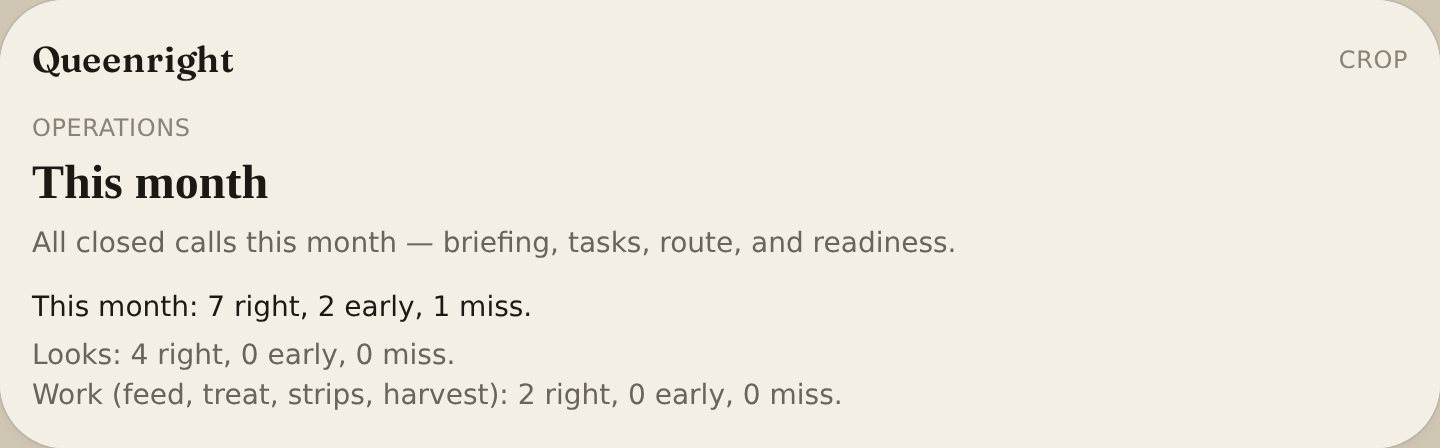
One accuracy strip for every closed call — briefing, tasks, route, and readiness.
- 1On Crop, under Honey production, open Operations.
- 2The top line is this month: right, early, miss, and still open.
- 3Lines under that split looks, swarm, no-trap, catch, mating, work (feed, treat, strips, harvest), route stops, readiness, and nectar flow.
- 4Yard briefing also shows the same total line above the swarm and no-trap strips. Those older strips stay as they are.
- 5Empty until you tap Happened or log the work. It only counts what the ledger already closed.
Site score, bloom, weight, photo
Trap-site scores, nectar forecasts, scale drops, and photo flags join the same calls. They do not invent a second book.
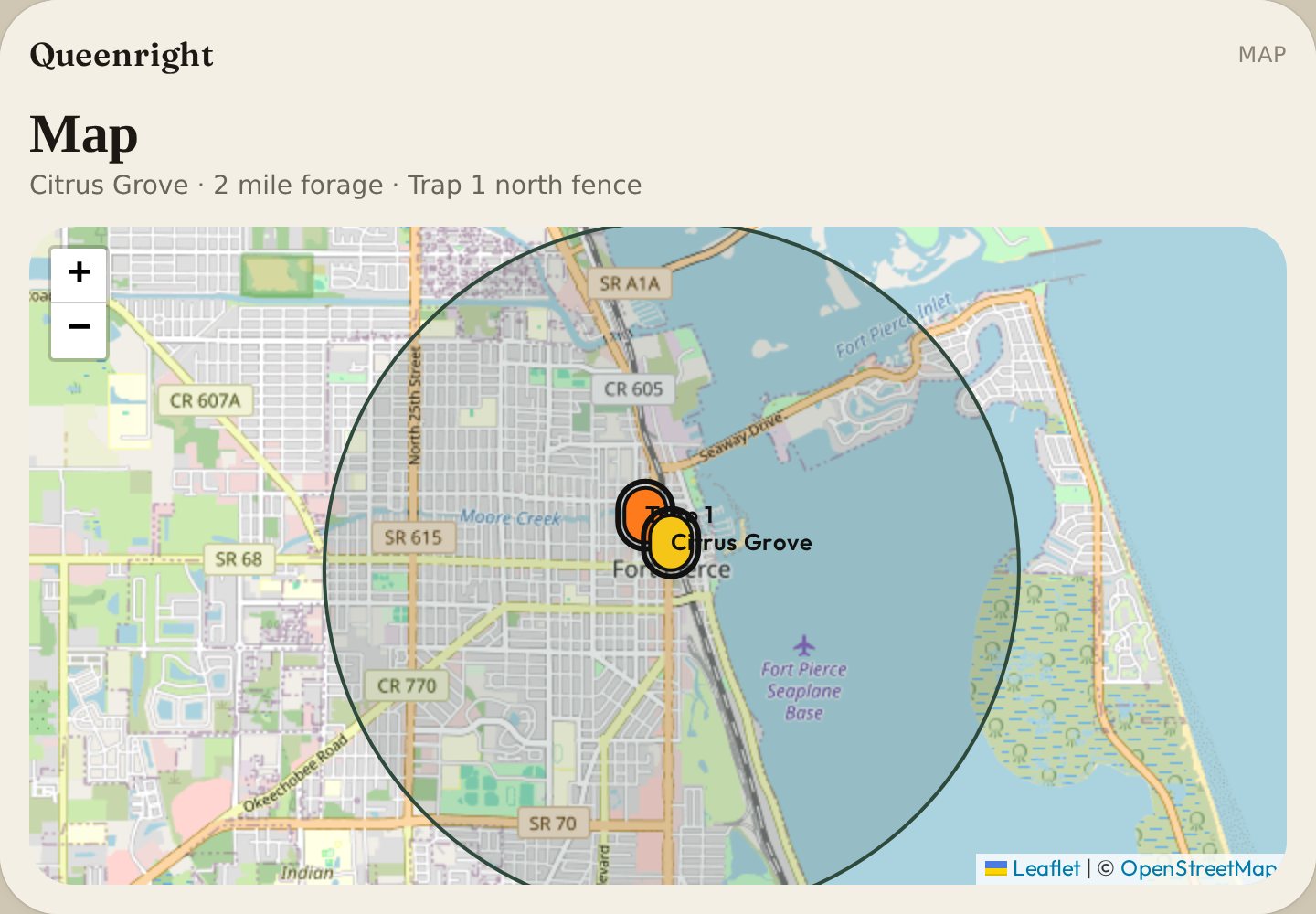
- 1On Map, Find best trap location → Use this spot → save the trap. The catch window stores that score. Logging a catch closes it as Happened.
- 2Nectar flow forecast opens a flow call when a plant is soon, beginning, or peak.
- 3Logging first, peak, or in-bloom on the map closes that flow call. Crop shows Nectar flow on Operations.
- 4A 3 lb weight drop only stamps an open look or swarm call. It does not open a new one.
- 5Read picture that flags possible cells does the same: snapshot only, on an open look or swarm line.
Parked until the book answers
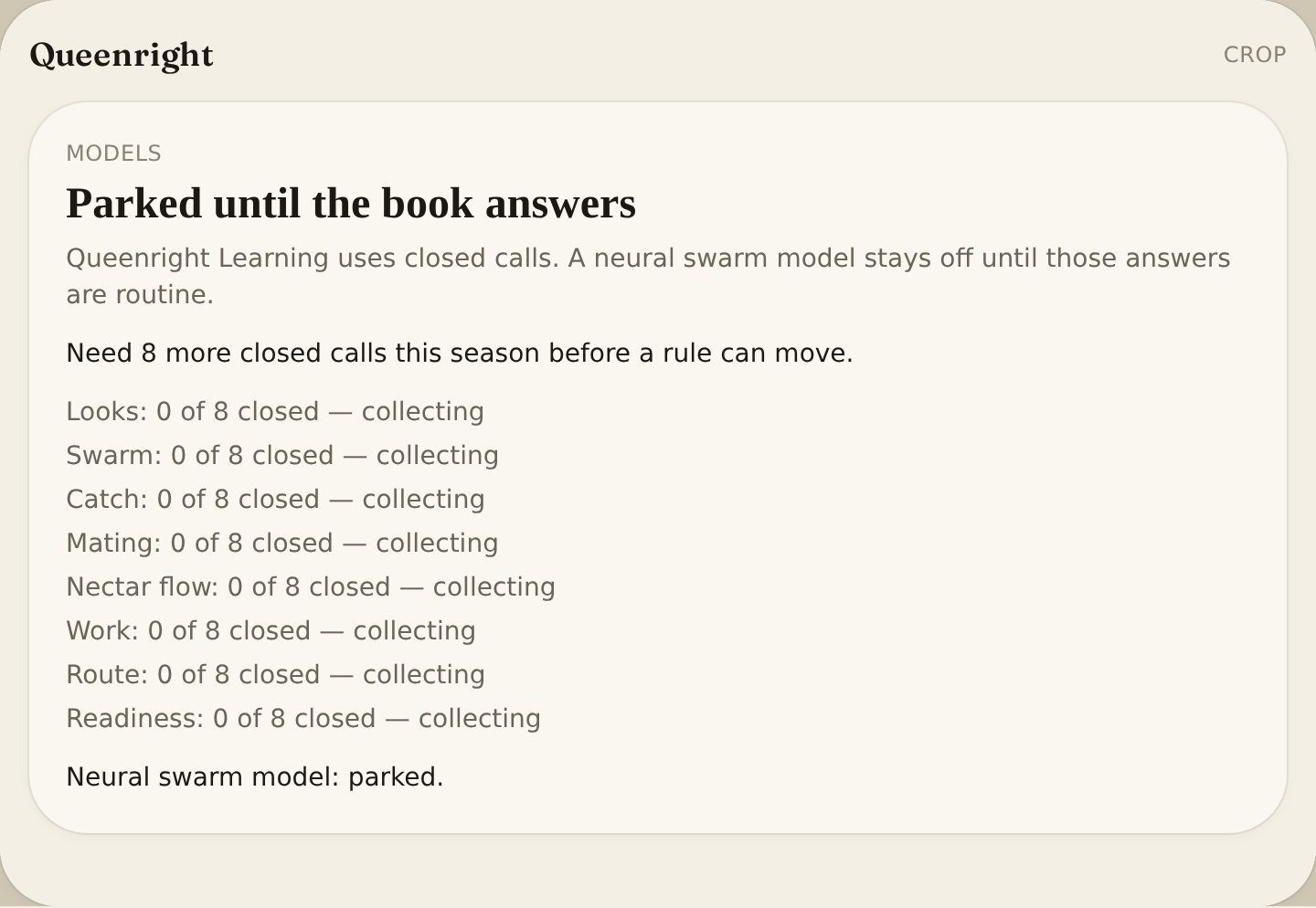
A neural swarm model stays off until closed calls are routine.
- 1On Crop, under Operations, open Models.
- 2Each line counts closed calls this season (not this month): looks, swarm, catch, mating, nectar flow, work, route, readiness.
- 3Collecting until 8 closes. Routine at 8 — the same bar swarm rules already use.
- 4After 8 closed swarm calls a named rule may move. Stock rules stay until then.
- 5Neural swarm model: parked. Queenright will not invent a learned national model while the book is still answering.
Search
Find a hive, yard, trap, or look without walking the whole book.
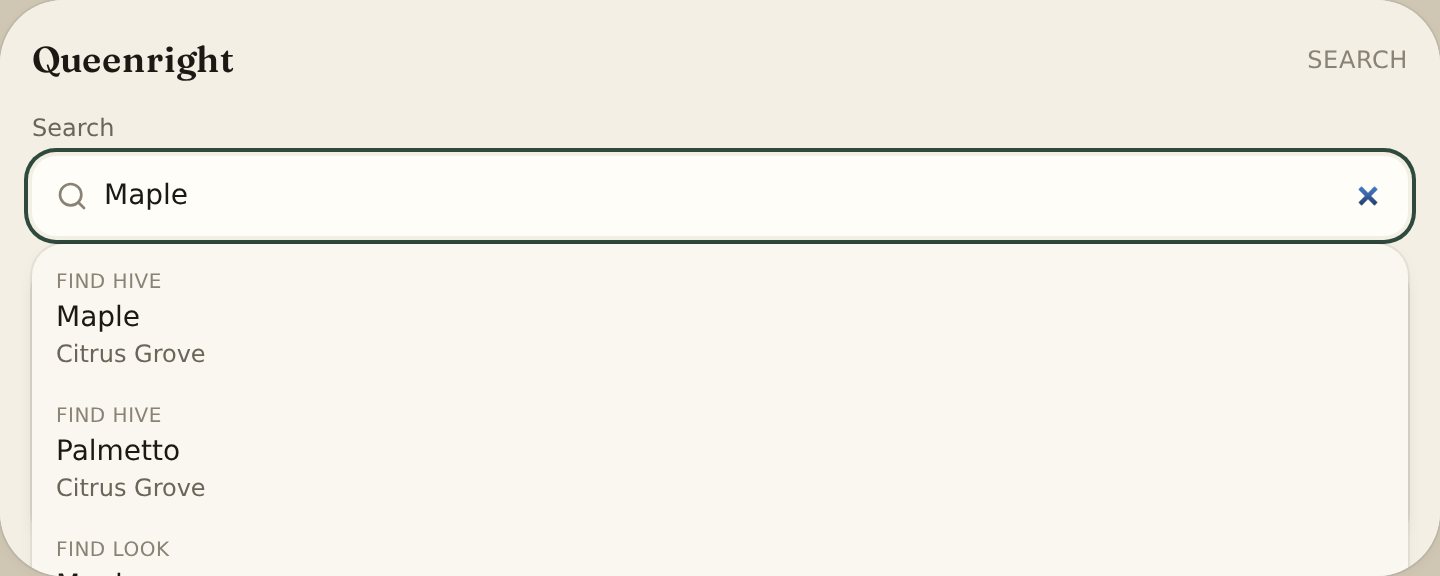
- 1Use Search in the header or the menu. Type a hive, yard, trap, look note, or queen.
- 2On Log, the Search box filters past inspections only. Clear it to see the full list.
Voice memos
Talk at the hive. Type the inspection at the kitchen table.
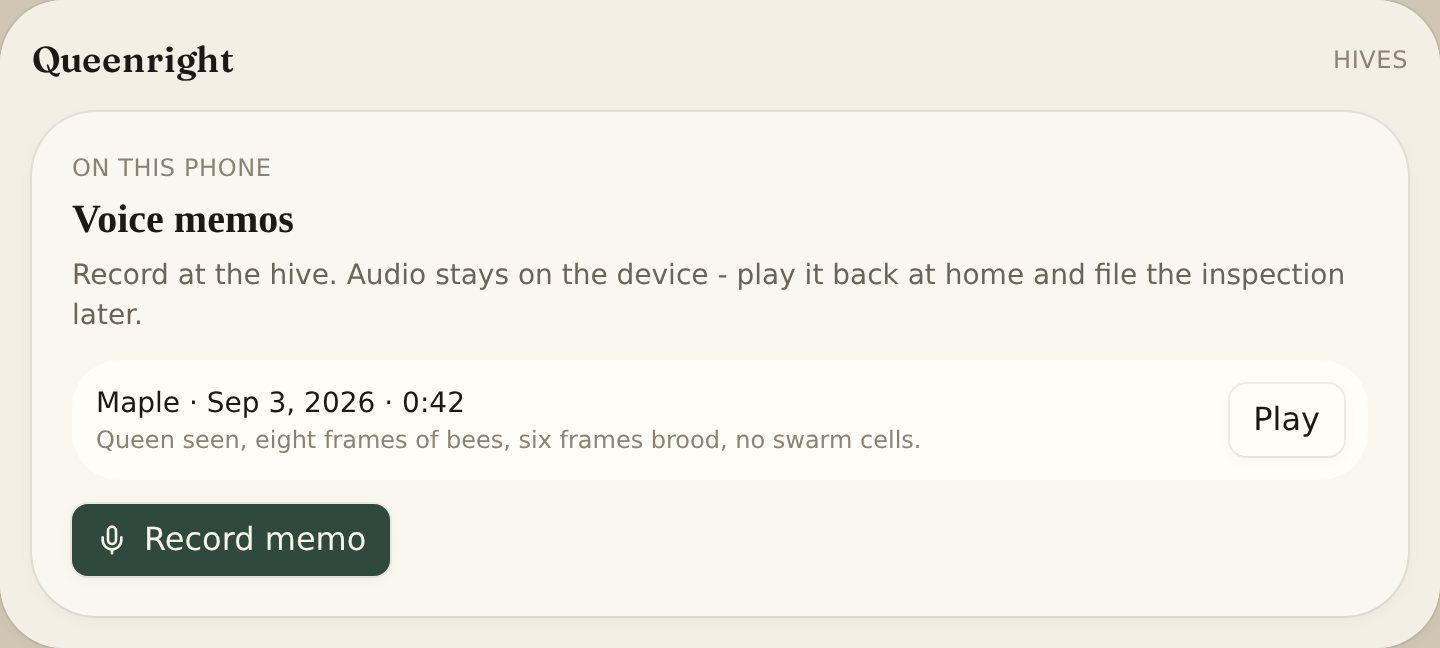
On a hive or on Log, tap Record memo and allow the microphone. Speak while you work (up to 10 minutes), then Stop. The audio stays on this phone only — it is not uploaded.
At home, play the memo and tap File this look. Fill the inspection form from what you hear. Delete the memo when you’re done. Clearing site data for queenrightapp.com also deletes memos on that browser.
Voice commands
The mic on the bottom of the screen (Chrome or Safari).
Try:
- “Inspect Maple, calm, queen seen, eggs, mites 1.2”
- “Open Palmetto”
- “Season” · “Map” · “Traps” · “The log” · “The yard”
Español
- “Revisa Maple, tranquila, reina vista, huevos, ácaros 1.2”
- “Abre Palmetto”
- “Temporada” · “Mapa” · “Trampas” · “La bitácora” · “El apiario”
A plan works in either language: “Put two more swarm traps around the north side tomorrow and check Hive 14 Friday.” · “Pon dos trampas al norte mañana y revisa colmena 14 el viernes.”
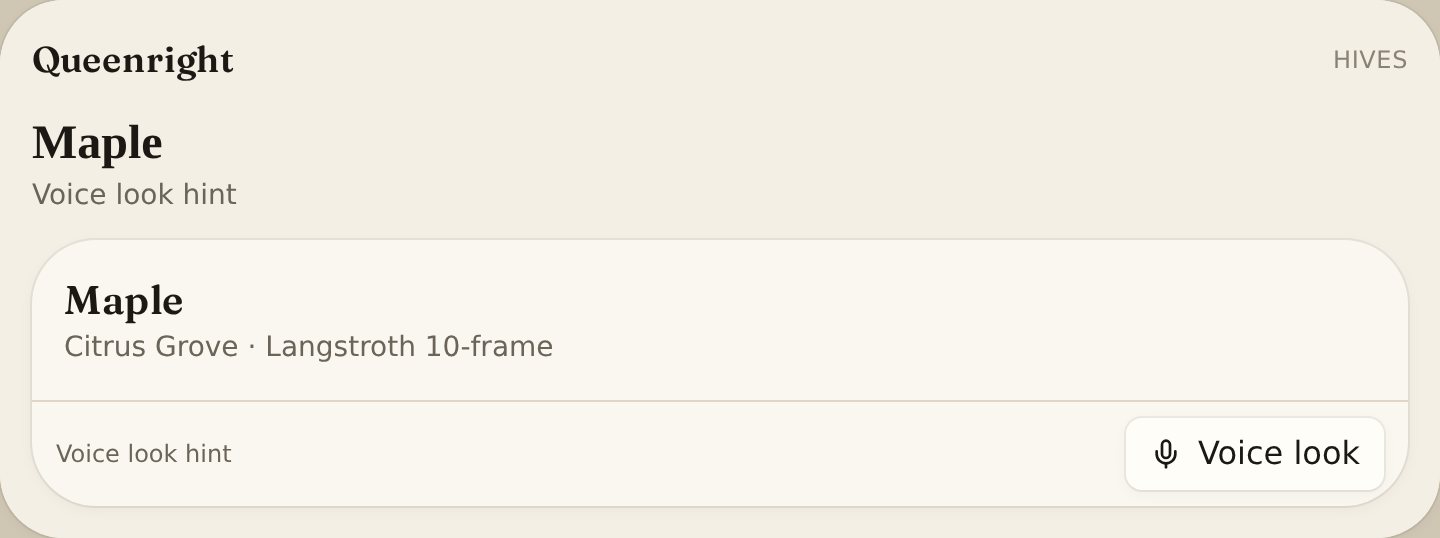
Voice look on the hive card takes the same words in English or Español.
Name the hive the way it is in the book. No signal? A spoken look is queued on the phone and files later. This is different from voice memos — commands fill the form; memos are recordings you play back. The mic follows the language of the book: English or Español. Switch it and the mic switches. Hive names stay as you typed them.
From a sentence
Speak or type a plan. Queenright shows tasks. You tap Save tasks.
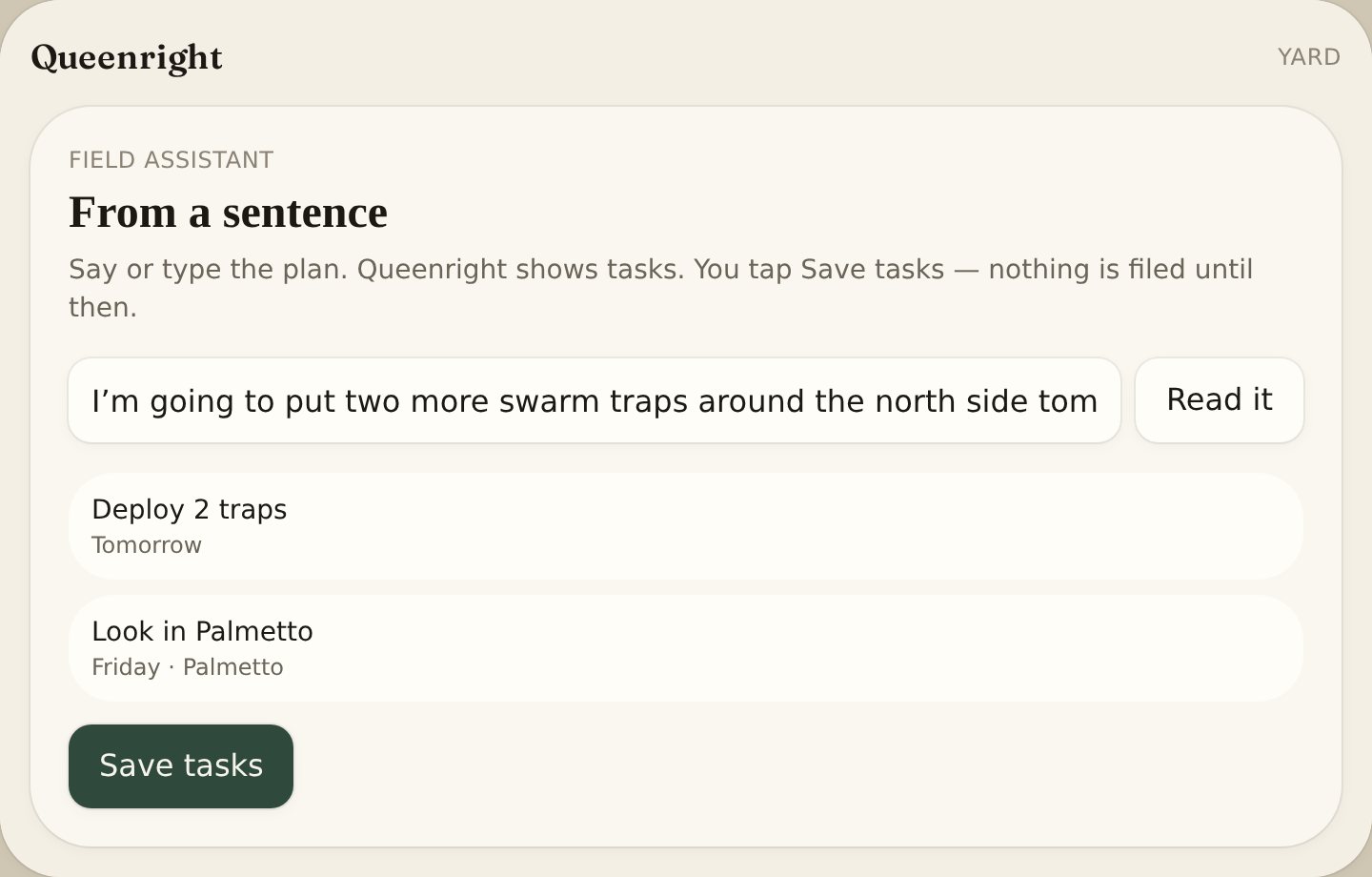
- 1On Yard, under the briefing, open From a sentence. Type the plan, or tap Speak a plan.
- 2Example: “Put two more swarm traps around the north side tomorrow and check Hive 14 Friday.”
- 3Queenright shows a draft list, such as Deploy 2 traps · north side · tomorrow, and Inspect Hive 14 · Friday. Drop a line if it is wrong.
- 4Tap Save tasks. That files Your tasks. It does not add trap cards or log an inspection until you do those jobs.
- 5The floating mic does the same: a plan sentence opens Yard with that draft. A look sentence (queen seen, mites) still logs an inspection.
Inspection reminders
The next look is scheduled from the last one.
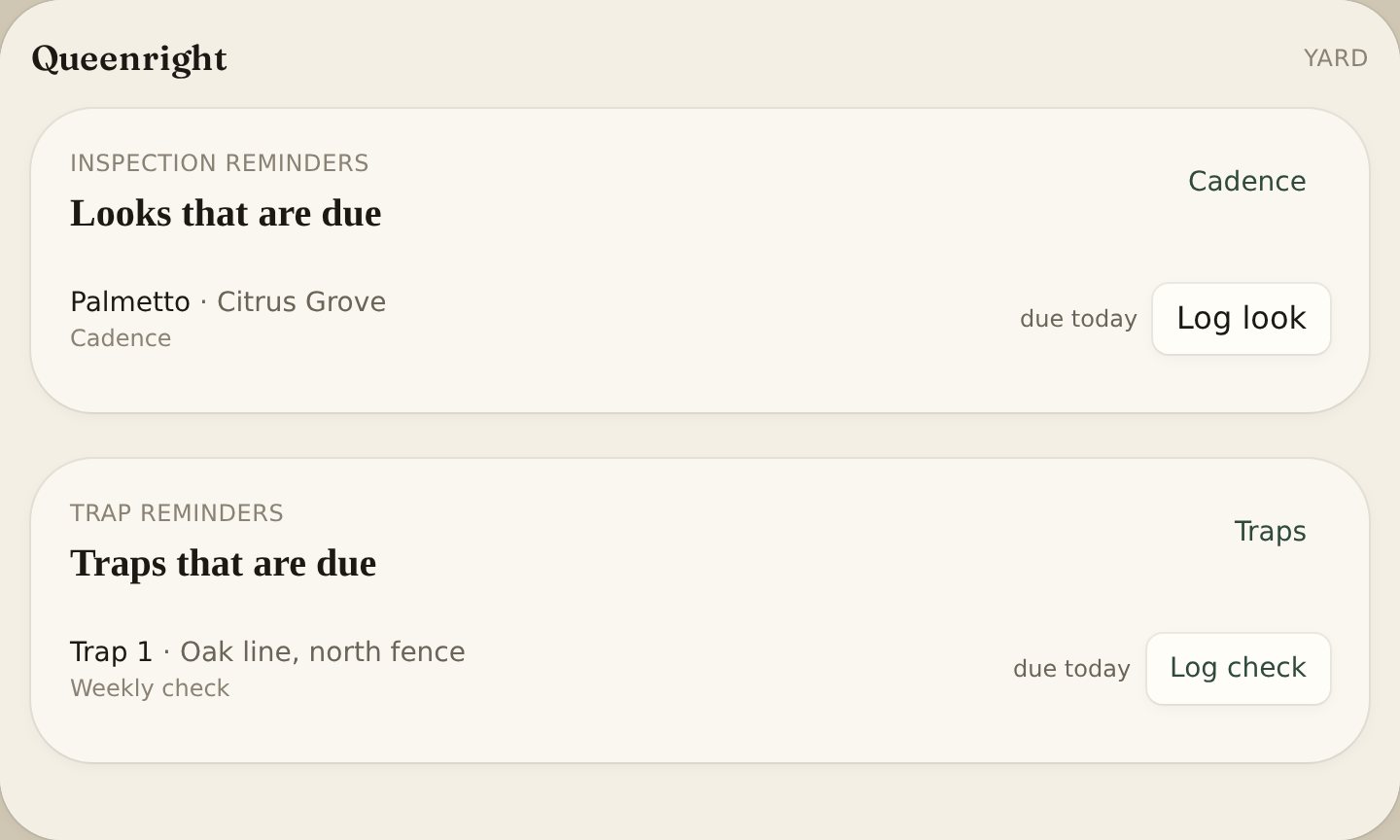
Swarm season is tight (about a week). Quiet months are longer. Swarming and queenless colonies get checked in 5 days; nucs in 7. Overdue hives show on Yard and Hives, and Queenright writes a task: Look in Maple.
On Season, set Days between looks and Days between trap checks. Leave hive days blank to follow the climate. Leave trap days blank for 7. One trap can override on its Edit form. Phone alerts: Settings → Alert me on this phone. Logging an inspection or trap check clears that task.
Harvests and treatments
Crop is the year’s take. Treatments live on the hive.
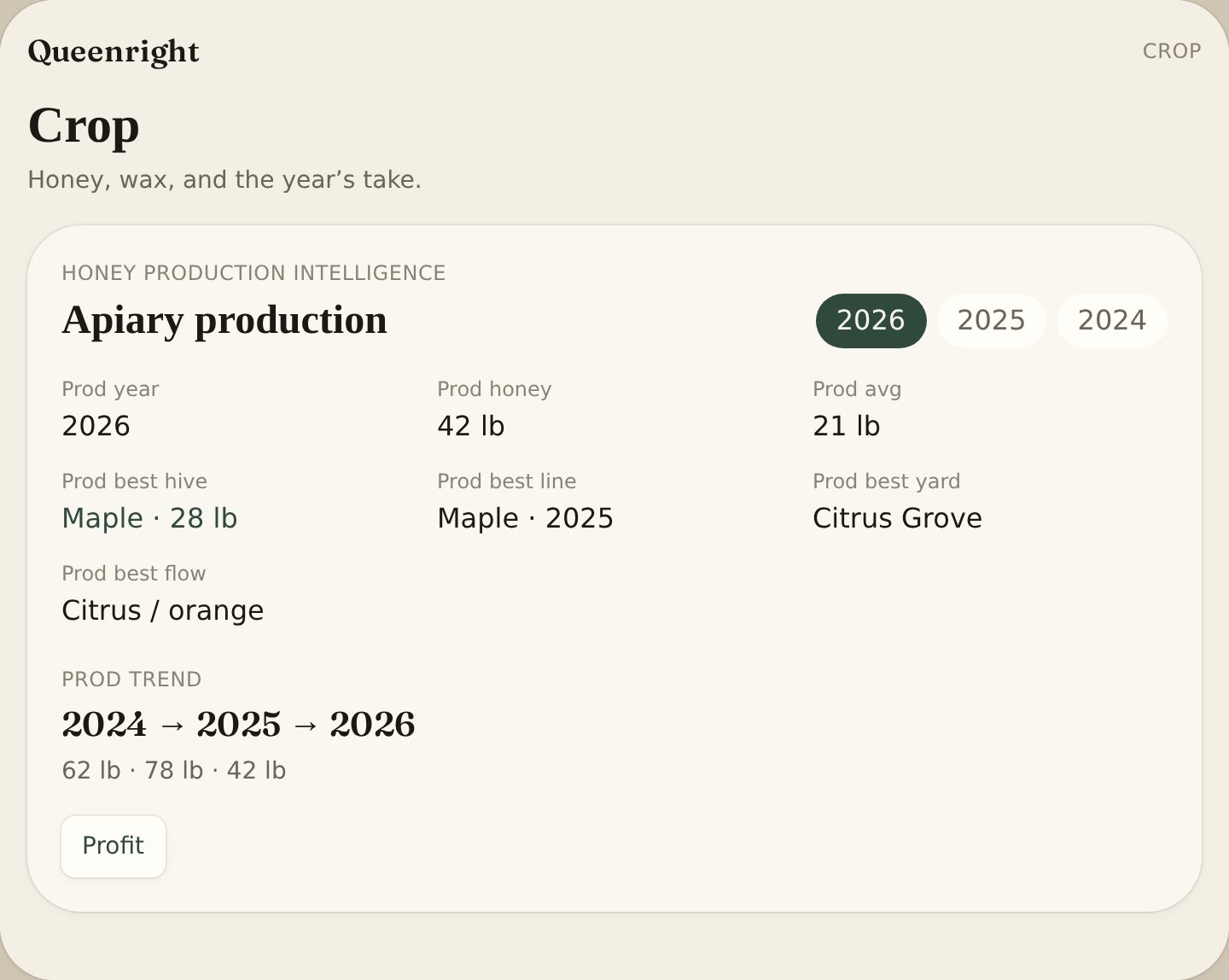
Record harvest: honey, wax, pollen, or propolis, in pounds or kilograms (Settings → Weight), on a hive and a date. Crop totals the year. On the hive, Log feed is the feed book: syrup 1:1 or 2:1, fondant, pollen, pollen sub, or dry sugar, with a date and amount. Fed today on a look is only a flag. Log treatment on the hive: oxalic, formic, thymol, amitraz, small hive beetle, wax moth, feed, or other. If you pull honey while a treatment is still in its wait window, Queenright warns you (amitraz and thymol ask you to confirm). Follow the product label — the app is a reminder, not a legal withdrawal. Owners record harvests and treatments; helpers can log looks and feed.
On a honey pull, add moisture % from the refractometer. It only shows when the product is honey. Cap stored honey at 18.6%. The % sits on Crop and on that hive’s harvest list.
Amitraz, formic, and thymol get a pull-strips date (42 / 14 / 14 days unless you change it). The hive shows the due date; tap Strips out when they’re off. Yard writes a task: Pull strips in Maple. Follow the label — Queenright is a reminder.
Honey production
Crop totals what you pulled. Intelligence compares yards and years.
- 1Record harvests on Crop or on the hive. Year totals use the harvest date.
- 2Apiary production shows honey, average per hive, best hive, best yard, best flow, and best queen line.
- 3The year at the top follows the current season and moves forward on its own.
- 4Wax harvest sits under the honey card. Log wax as its own product.
- 5How is my operation performing? is live hives, deadouts, overdue looks, and profit so far.
Profit
Money in and money out for the year you pick.
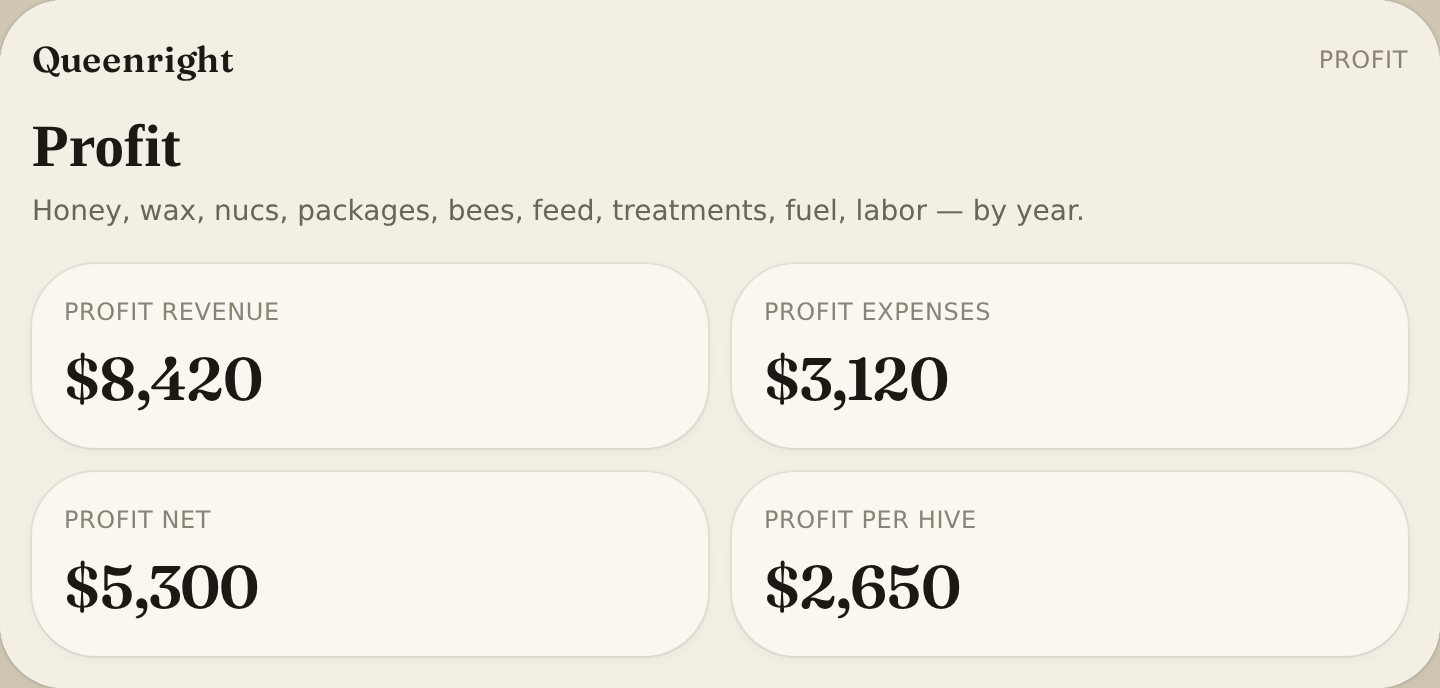
- 1Add income (honey, wax, nucs, packages, bees) and expenses (feed, treatments, fuel, labor, equipment).
- 2Apiary profitability is revenue, expenses, net, and revenue per hive for that year.
- 3Queen rearing costs are on the same page: spend vs successful laying queens.
- 4The current year is always listed. Earlier years appear when they have a sale or an expense. Tap a year for that year’s totals. A future year stays empty until you add a row.
Crew
People, trucks, truck tools, routes, loads, and next week’s labor.
- 1Set keeper mode in Settings to Sideliner or Commercial so Crew appears.
- 2Add people and trucks first. Then assign people to yards.
- 3Log labor hours by person, date, and yard.
- 4Truck loads record how many hives rode, which truck, and which yard.
- 5Queen and nuc inventory is boxes on hand vs queens already on hives.
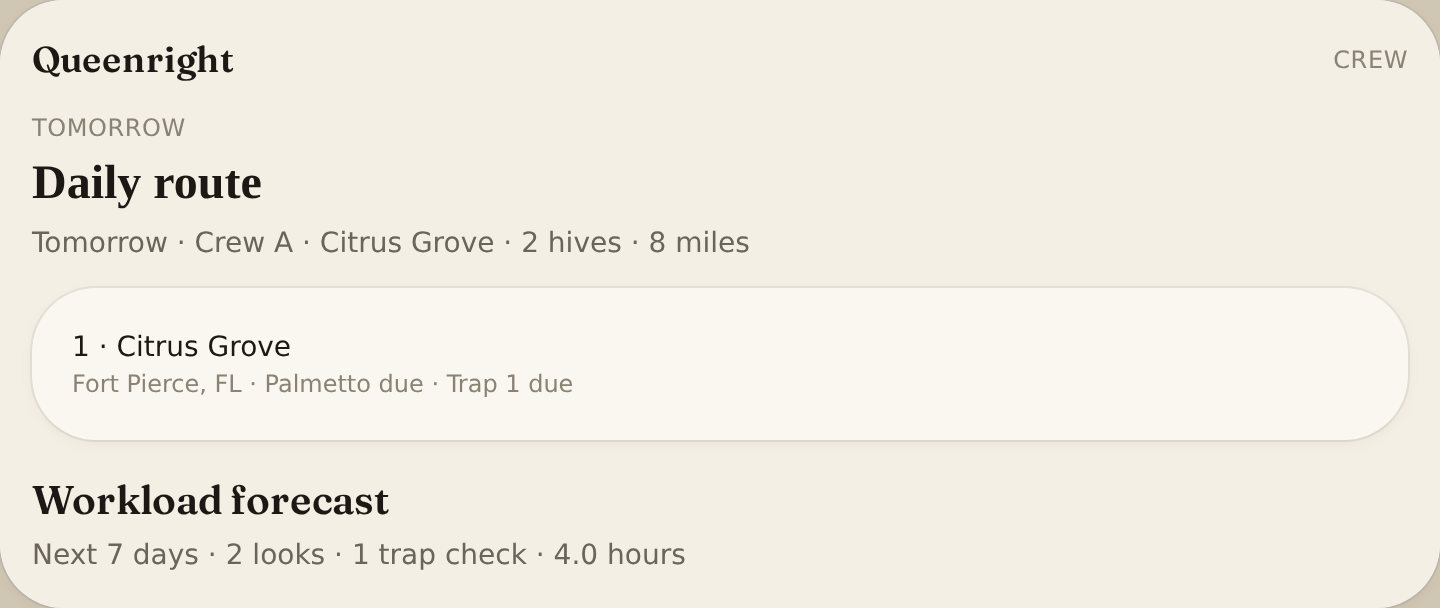
- 6Workload forecast and Daily route use due looks, treatments, traps, and harvests.
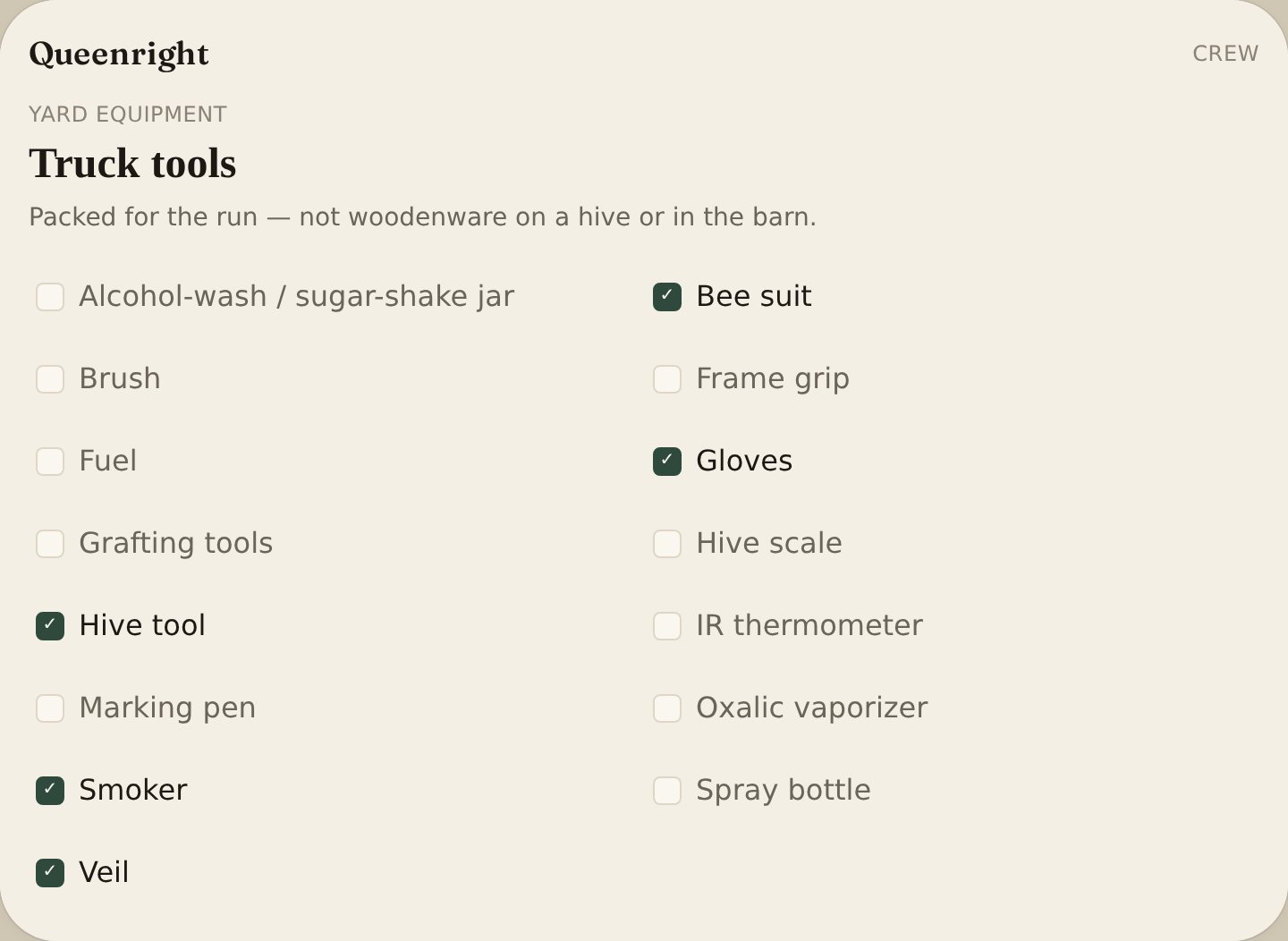
- 7Under Yard equipment, Truck tools is the packed-kit list. Check what’s in the truck — hive tool, smoker, veil, bee suit, and the rest. Those are not yard kit or hive equipment.
Truck tools
What’s packed in the truck — not woodenware on a hive or in the barn.
- 1In Settings set Sideliner or Commercial so Crew appears.
- 2Open Crew. Under Yard equipment, Truck tools is A–Z checkboxes.
- 3Tap what’s packed: hive tool, smoker, smoker fuel, veil, gloves, bee brush, frame grip, spray bottle, oxalic vaporizer, alcohol-wash / sugar-shake jar, marking pen, grafting tools, IR thermometer, hive scale, bee suit, water, unscented sunscreen, towel, flashlight, queen clip, Swarm Sauce, frames, entrance reducers, first aid kit.
- 4Checks save to your account. Counts stay on This yard’s equipment and on the hive card.
Workload forecast
Next 7 days of looks, treatments, trap checks, harvests, and labor.
- 1In Settings, set keeper mode to Sideliner or Commercial so Crew appears.
- 2Open Crew. Workload forecast is at the top. The kicker is Next 7 days.
- 3The four counts are hive inspections, treatments, trap checks, and harvests due in that window.
- 4Labor required is hours to do that work. Available is from labor logs if you have them, otherwise the crew roster.
- 5Capacity shortfall means you need more hours than you have. Add people, or spread the work.
Daily route
Tomorrow’s crews, yards, miles, and hours. No extra forms.
- 1On Crew, Daily route is under Workload forecast. The kicker is Tomorrow.
- 2It uses due looks, strip pulls, traps, harvests, yard pins, crew assignments, and trucks you already log.
- 3Each crew shows yards, hives, inspections, treatments, traps, and harvests.
- 4Estimated miles and hours sit under that. The numbered list is the drive order.
- 5Named weekday routes keep those yards with that crew. Leftover yards split by hours so one truck does not take the whole day.
- 6Print route on a crew opens a sheet: Print, Share, and Save. One page: people, truck, yards, looks, treatments, traps, harvests, miles, hours, stop order, GPS, and access notes. Print all crews does every crew, one page each.
- 7Share route (or Share all crews) opens the phone share sheet — Messages, Mail, WhatsApp. It sends tomorrow’s plan as text. Use the phone if you want Messages. On a laptop, Print route then Share on that sheet, or Save the file.
Queens
Rounds, breeders, cells, mating nucs, quality, and photos. Sideliner and Commercial only.
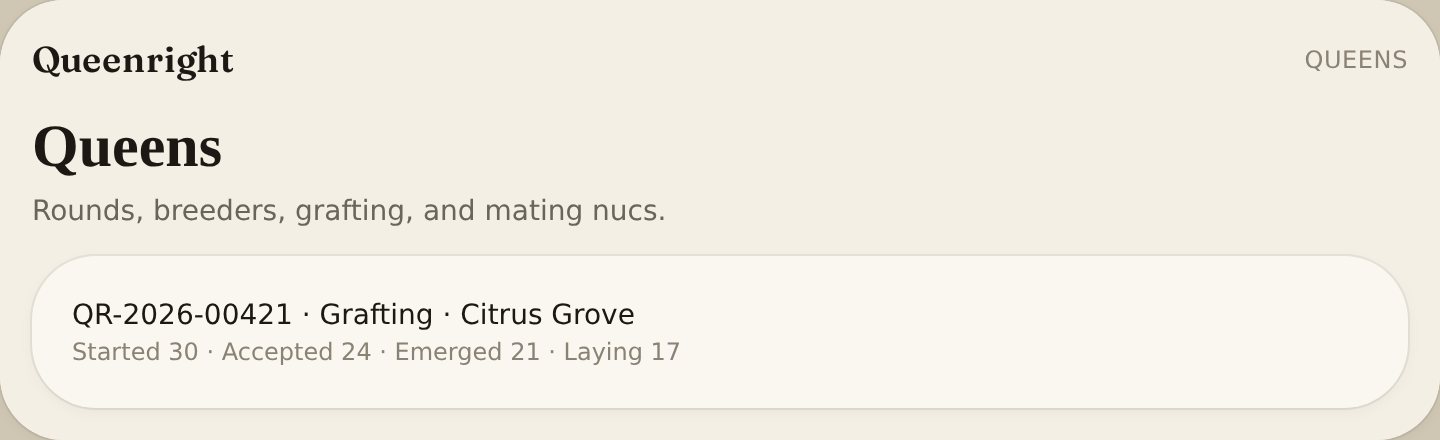
- 1Start a rearing round when you graft. Log started, accepted, emerged, mated, and laying.
- 2Breeder queens hold identity and field traits for the queens you graft from.
- 3Install a queen to create a nuc or hive from that round.
- 4Mating nucs keep their own id, cell, and weather from the yard.
- 5Queen quality is 1–5 scores. Use not measured when you skipped a trait.
- 6Queen photos stay on the event, cell, nuc, or queen they belong to.
- 7Predicted vs actual compares odds frozen at the graft with the counts on this book: acceptance, emergence, mating, and laying.
- 8Queenright writes the odds from larva age, builder strength, and feed. Actual fills as you log accepted, emerged, mated, and laying. Predicted does not move after it is written.
- 9On the call = within 8 points. Predicted high = the odds were hot. Predicted low = the book beat the call. Weighted across rounds. Each round’s tree shows the same four bars.
- 10On the cell log, open a round and tap Add cell. One incubator line records time in, cage-by, and the °F you held. Cage by starts at the graft time plus 12 days — change the hour. The line uses the earliest time in and the earliest cage-by in that round. Mating and laying stay on the day calendar.
Map, forage, swarm traps
Plot apiaries, a forage circle, and bait hives.
- 1Open Map. Search a place or drop a pin on a yard.
- 2Set forage miles on the yard — the circle is a reminder, not a GPS fence.
- 3Trap pins show on the map. The full trap book lives under Traps.
Need a signal to load map tiles the first time; after that the pins stay in your book. Bloom notes drop as gold pins. Log first, peak, and last bloom each year — Queenright keeps the history so you can see if citrus is early.
Nectar flow forecast uses bloom pins and yard weather. Confirm in the field.
Best place for my next swarm trap scores forage, distance from yards and traps, and past catches. Pin a yard first.
Swarm coverage shows high-risk colonies vs active traps in range.
Florida holly is on the plant list — the Florida name for Brazilian pepper. First bloom about September 1, peak from mid-September through October 20, finished by November 5. Built-in dates start in south Florida and slide with the yard’s latitude and climate. A date you log on the pin wins.
Swarm traps
Dozens of boxes: set, pin, check weekly, and keep a record.
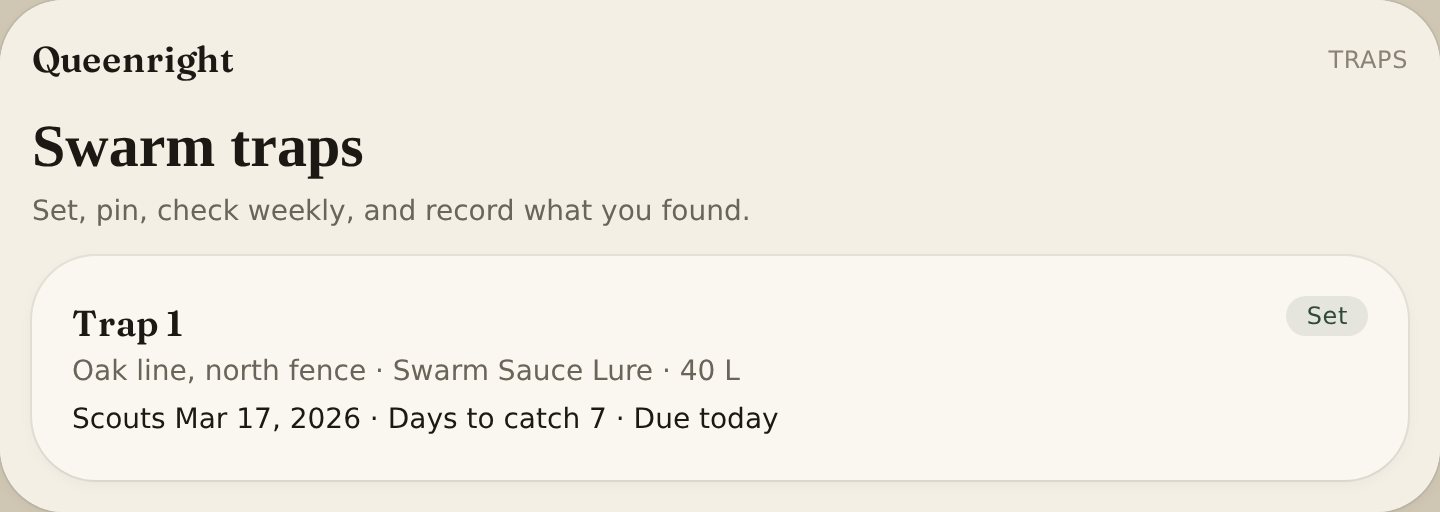
Traps is the swarm-trap book. Add a trap with a name, bait (Swarm Sauce Lure, lemongrass, old comb, other lure), status (set, empty, caught, pulled), set date, and optional place. Pin it by searching a road or entering lat/long, or drop the pin on Map. Traps list in alphabetical and numerical order.
- 1Add trap. You can save it before you know the GPS pin.
- 2Filter Due for boxes that have not been looked at in a week.
- 3Log check — date, status, what you saw. That writes the record.
- 4Open Record on a card to read past weekly looks. Caught when it has bees; Pulled when the box is down. Caught → Hive this swarm: name the nuc, pick a yard. The trap is marked pulled and the colony is a Caught swarm.
- 5Print trap lids on Traps (or Trap QR on a card) and tape one to each box. Scan opens that trap — you must be signed in on the phone.
- 6Print trap card lists names, places, last check, and due — take it in the truck.
- 7Trap performance is catch rate by bait, place, type, and height. Swarm Sauce has its own line.
- 8Occupied trap → Hive this swarm creates the nuc and marks the trap pulled.
- 9Swarm Command Center on Traps is deployed, due, scouts, caught, empty, and pulled for the season.
- 10Share trap field card sits next to print — on the page and on each trap card. It sends name, place, bait, status, scouts, days to catch, last check, and due (Messages, Mail, WhatsApp). Print is unchanged.
Lure
Swarm Sauce Ultimate Honey Bee Swarm Lure
Bait the trap from the Swarm Sauce shop.
Buy Swarm SauceSeason
Tropical, dry, Gulf, temperate, or cold winter — plus your own tasks.
Each yard has its own climate. Pick the yard, then the climate that matches it. This month’s focus sits on top; the year is below. Add tasks, check them off, and set inspection cadence here (cadence is for the whole book). Wintering report: Fall wrap (stores, insulation, mouse guard, reducer, mites) and Spring check (alive, weak, queenless, deadout). Loss % is deadouts among the hives you scored in spring. Switch years at the top. South Florida and Hawaii: Tropical. Southwest: Dry / desert. Gulf and Southeast: Subtropical. Most of the mid-latitudes: Temperate. Upper Midwest and North: Cold winter.
Season tasks and wintering sit on Season. Cadence for looks and traps is set here for the whole book.
Season readiness
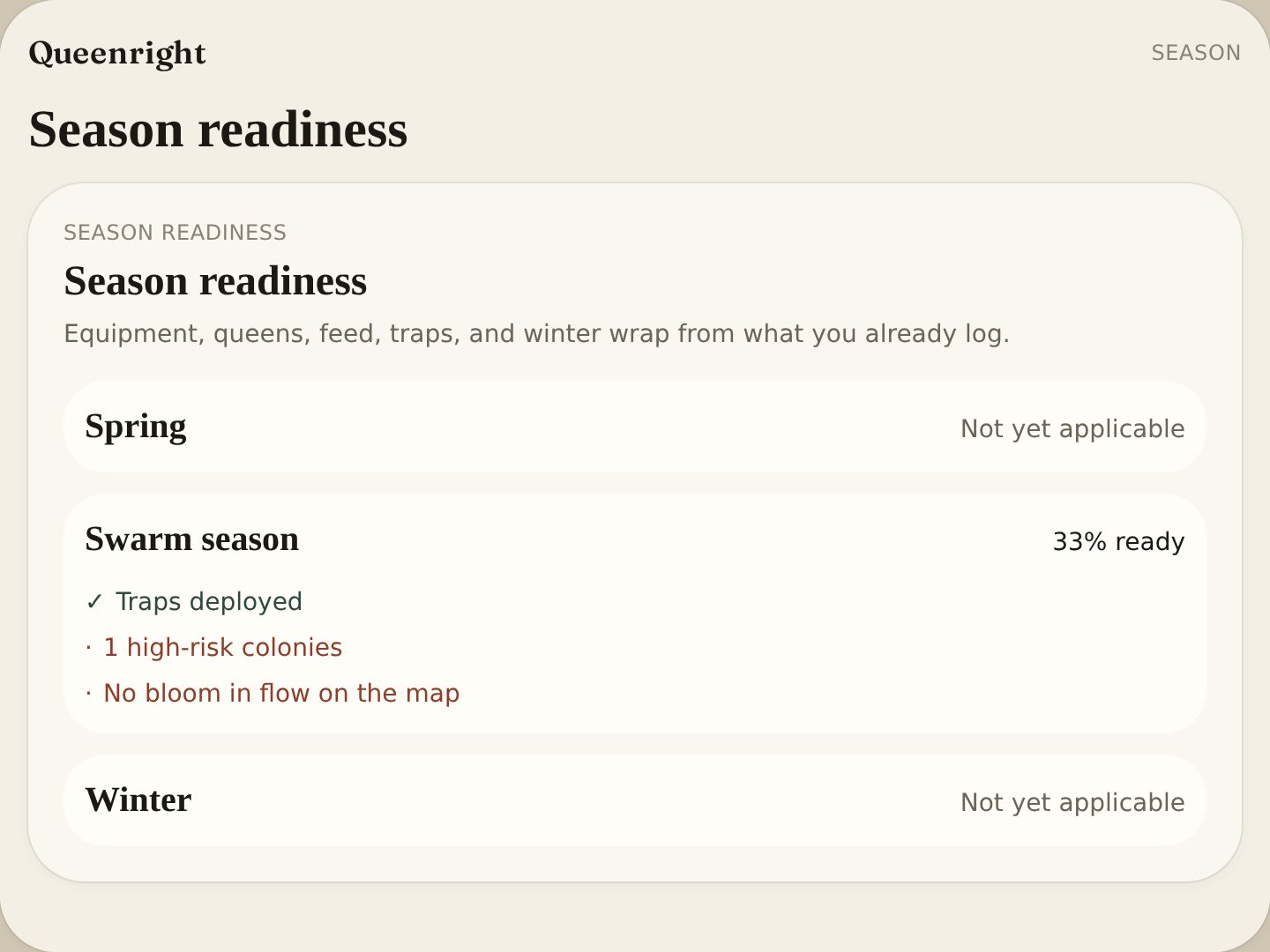
Spring, swarm season, and winter — a % ready from what you already log.
- 1On Season, under Traps that are due, open Season readiness. Pick a yard at the top if you have more than one.
- 2Spring scores equipment, queens, recent feed, and colonies that need a look.
- 3Swarm season scores traps not deployed, high-risk colonies, and forage on the map.
- 4Winter scores fall wrap and mite notes. Out of season it says Not yet applicable.
- 5There is no extra form. Log kit, looks, feed, traps, blooms, and wintering as you already do. The % updates from that.
Weather surge
A yard-level clock. It does not name which hive will swarm.
Confined days plus a warm clear tomorrow. GDD is season heat from 1 January — not a percent chance. The 1-day window is tomorrow. Check traps first, then high-risk boxes.
- 1Today: check traps that cover that yard.
- 2Today: look at High / Very high hives if the lid is safe.
- 3Tomorrow: traps first, then High boxes. Mark Happened or Did not.
- 4Checking traps first is the right move.
How swarming is decided
A hive is marked swarming only from the look you save. The number on the card is a warning, not the mark.
Saving a look with 3 or more swarm cells marks the hive swarming, and only if it is queenright or a nuc. One or two cells do not change the status. Queenless, dead, and removed stay as they are. You can also set Swarming by hand on the hive.
Swarm risk is a 0–100 warning from the latest look. It does not, by itself, mark the hive swarming.
Points add from that look: already swarming 45 (those cells count as many). 3 or more cells 40. 1–2 cells 22. The look before also had cells 8. Strong brood 14, fair brood 6. Queen present 6. Queen 2 years or older 6. High congestion — 16 or more frames, or 3 or more boxes — 16; moderate — 10 or more frames, or 2 boxes — 8. Heavy honey 8, adequate 3. Peak swarm month 12, in swarm season 6. No look for 10 or more days in season 14; 7 or more days 8; never looked in season 10. Next action is add a super 5.
Outside swarm season, the points so far are cut to 45%. The overdue-look points apply only in season. Add a super still adds 5 after the cut. A nuc stops at 42. Queenless is forced to 8, Low, and skips the points. Dead or removed scores 0.
Stock thresholds are High at 50 and Very high at 75. Learning can move those after enough closed swarm calls. At or above Very high, look within 24 hours — also if that look has 3 or more swarm cells, even when the level is lower. At or above High, look within 48 hours. About half of High, and at least 20, is Moderate: look this week. Below that is Low: stay on the normal cadence.
That score is graded on the next look, separate from Today’s briefing. A High or Very high call counts only if the next look still has swarm cells, or the hive is still marked swarming and no later look closed it. A split, a super, or pulled cells, with zero cells on the next look, is a miss on this score — you stopped it. A Low call, then cells on the next look, is a miss the other way. Supersedure cells are saved on the look and are not part of this score. The Learning strip on Yard grades a prevented swarm on its own line. That strip is not this number.
Swarm prevention
Swarms are the colony’s plan. Work the hive in this order before cells get sealed.
A laying queen, a tight brood nest, nectar, and often an older queen after confined weather. If health holds and swarm risk climbs, they are not sick — they are ready to throw. Colony state on the hive shows that.
Do this, in order
- 1Open the hive. Read Swarm risk and Colony state.
- 2If risk is High or Very high, or Yard shows a weather surge: inspect that box within 24–48 hours.
- 3No swarm cells yet, and they’re tight: add a super now. Drawn comb first. Set next action to add a super if you can’t today.
- 4Still congested: open the brood nest. Checkerboard, or lift a brood frame up and drop an empty into the nest.
- 5Cells present, or still packed after space: Split. Pull bees, brood, and usually the old queen into a nuc. Both cards stay.
- 6Queen two seasons old or more: Requeen on that hive. It archives the old queen.
- 7Cut cells only to buy a day. Then split or requeen (steps 5–6). Miss one sealed cell and they leave.
- 8Demaree or shook swarm only if you cannot lose that breeder: queen away from most of the brood.
- 9Set baited traps 100–400 yards out. They catch misses; they do not stop the swarm. High risk with no trap in range is the no-trap call on Yard.
- 10After you super, split, or requeen, tap Happened on the briefing line. On tropical and subtropical yards, watch congestion and flow all year — a second pulse after summer rain is common.
Skip these — they do not prevent a swarm
Foundation with no drawn comb. A mite treatment. Waiting two weeks in peak season. Trusting a high health score. Strong and swarmy are cousins.
Colony event graph
On the hive, under Colony state. Records sit on one timeline instead of as separate lists.
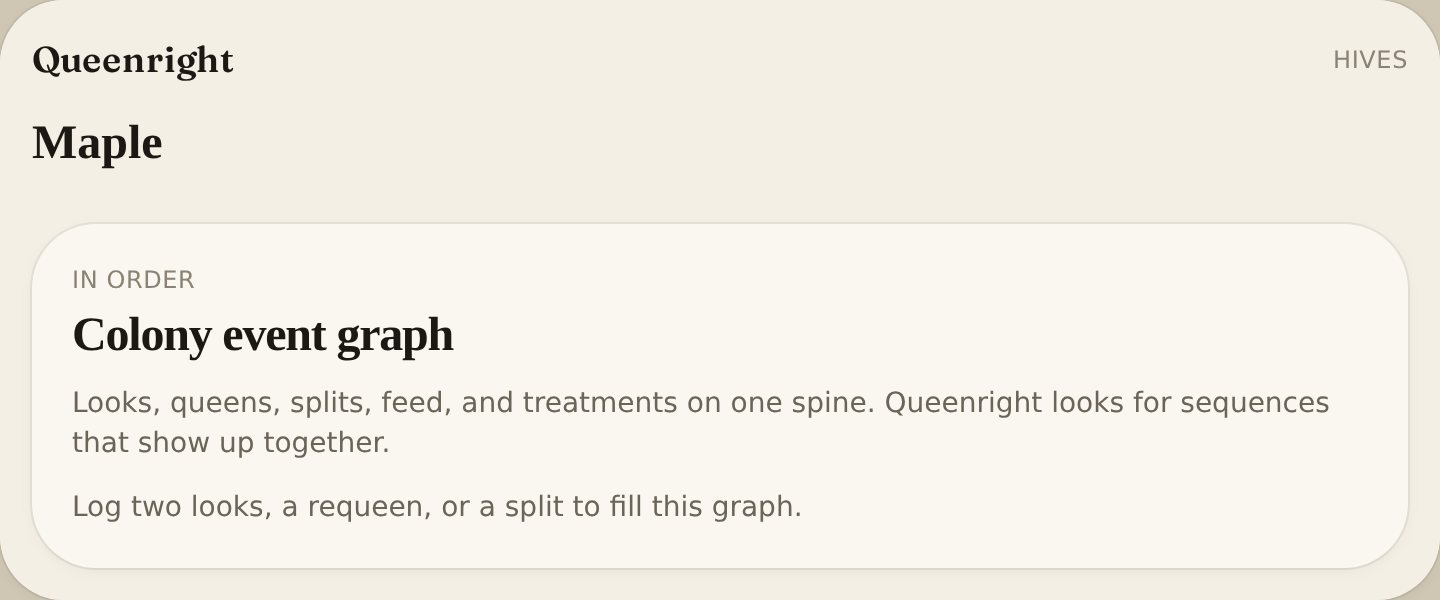
- 1Open a hive. Scroll to Colony event graph.
- 2Timeline is looks, queen replaced, brood expansion, congestion, swarm cells, swarm risk up or down, split, feed, treatment, weather, trap hive, combine, and move — in date order.
- 3Associated sequence is a stretch Queenright saw together, for example queen replaced → brood expansion → congestion → swarm risk increase → split → risk falls.
- 4Read that as associated with, not caused. Queenright does not have experimental proof of cause.
- 5Log two looks, a requeen, or a split to start filling it. Keep logging so sequences can show up.
QR labels
Tape a code to a hive lid or a trap lid. Scan it, land on that hive or trap.
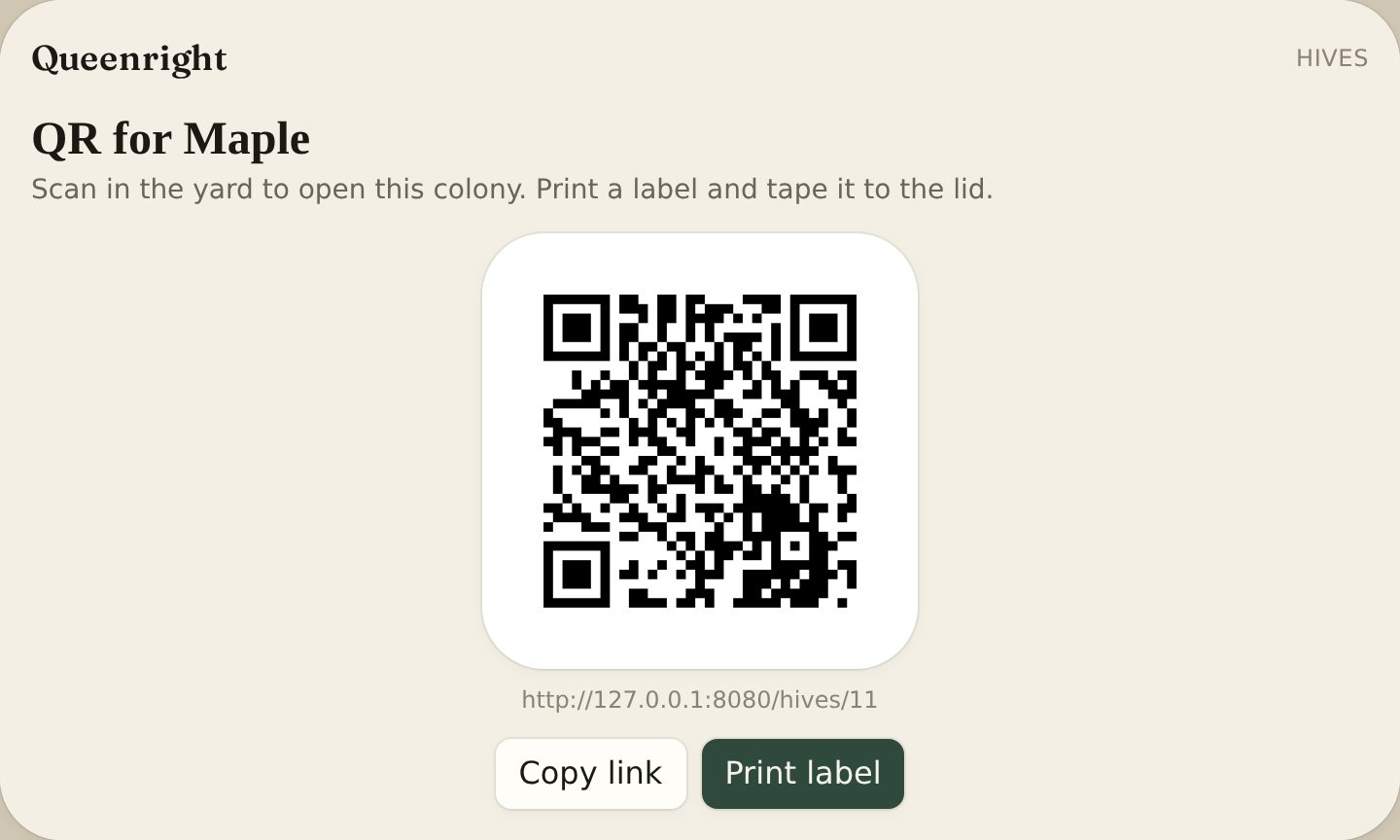
On a hive, Hive QR → Print label. Or on Hives, Print QR labels for the whole book. You must be signed in on the phone that scans. Helpers can print and scan too.
On Traps, Print trap lids for a sheet, or Trap QR on one box. Tape it to the lid. Scan opens that trap so you can log the check.
Hive photos
A picture of the comb, the queen, or the stack.
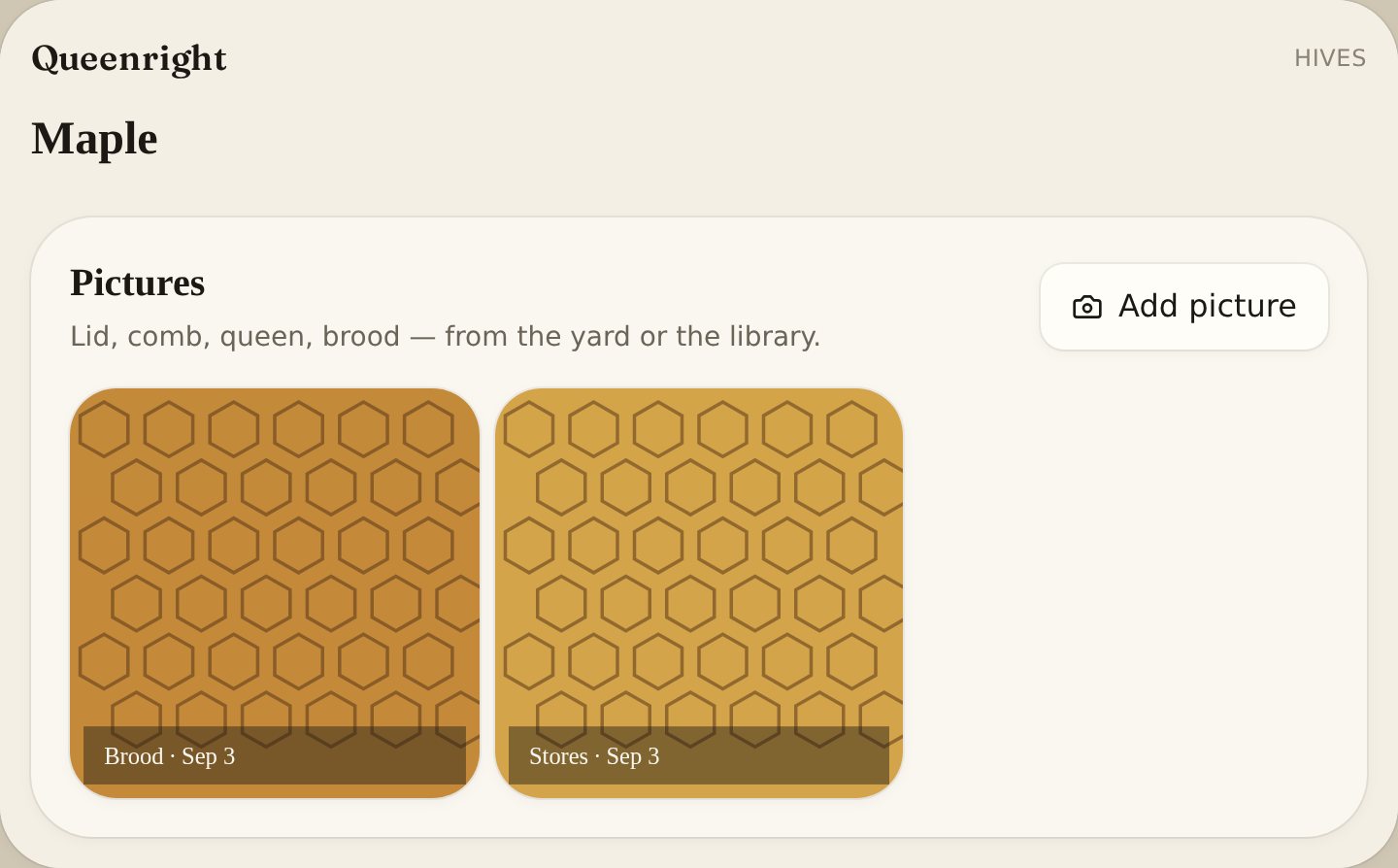
On the hive page, add photos (JPEG, PNG, or WebP). They’re stored with the hive in your account — up to a dozen per colony. Owners add and delete; helpers can look. A look can also take 1–2 comb or queen shots on Log inspection — those stay on that inspection.
Read picture on a hive or look photo can flag brood, queen, cells, mites, beetles, or moth. Verify in the box.
BLE sensors
BroodMinder and generic Bluetooth sensors, read from the hive page.
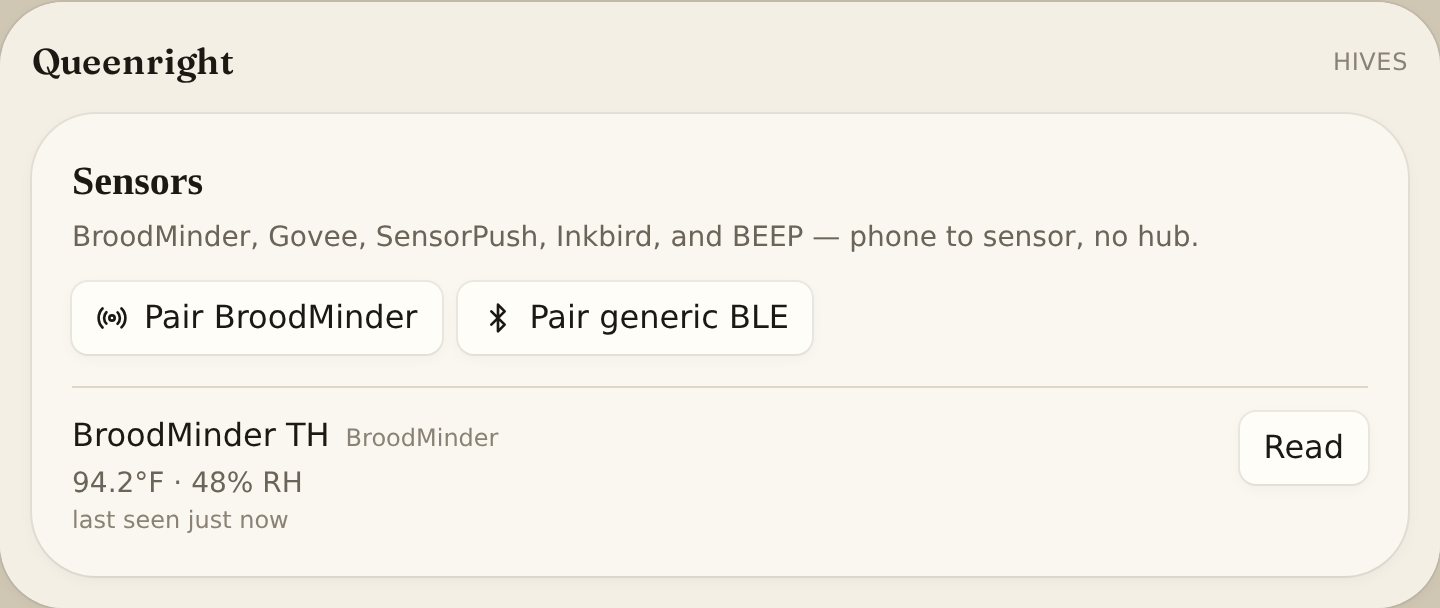
Chrome or Edge on Android (or a desktop with Bluetooth). Tap to pair while you’re next to the hive. Readings are stored with that colony. iPhone Safari does not speak Web Bluetooth yet.
- 1No paid hub or gateway. Queenright talks phone-to-sensor — not through a BroodMinder hub, BEEP base, or HiveTracks-style collector.
- 2On the hive page, pair BroodMinder, Govee, SensorPush, Inkbird, BEEP, or generic BLE. Stand next to the hive.
- 3Needs https (queenrightapp.com). Safari and the iPhone Home Screen app cannot pair. Use Android Chrome, a Bluetooth laptop, or a browser that exposes Web Bluetooth.
Share a yard
Owners invite. Helpers see the book and log inspections.
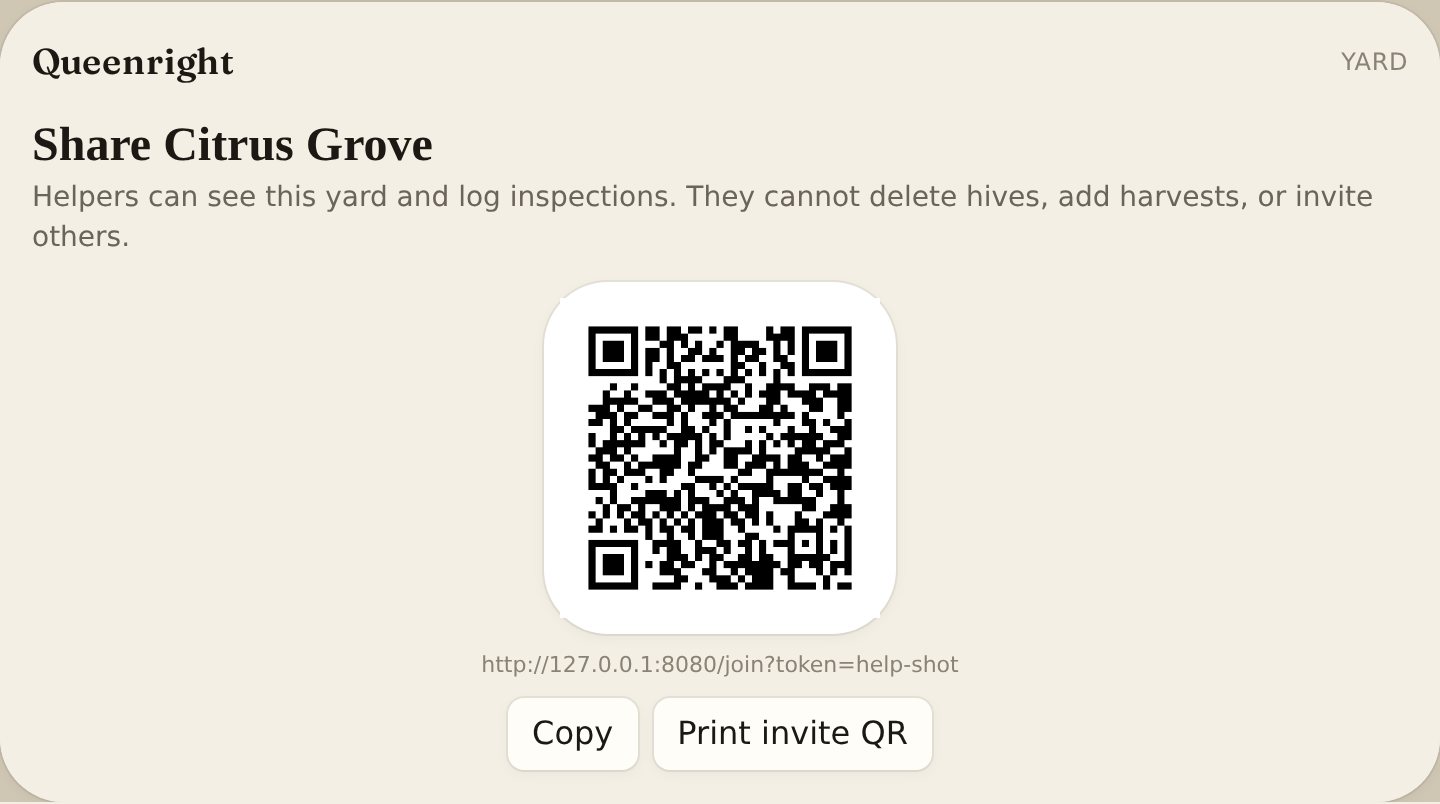
- 1On Yard, tap Share on a yard you own.
- 2Copy the invite link. Optional: lock it to one email.
- 3They open the link, sign in, and join.
- 4On Share, Invite QR (or Print invite QR) on an open invite. They scan, sign in, and join. Codes open queenrightapp.com — they must sign in on that phone.
Helpers can view hives, log looks and feed, and record memos. They cannot add or delete yards and hives, change sharing, or file harvests. Revoke a link anytime from Share.
Backup and export
The live book is in the cloud. Keep your own copy too.
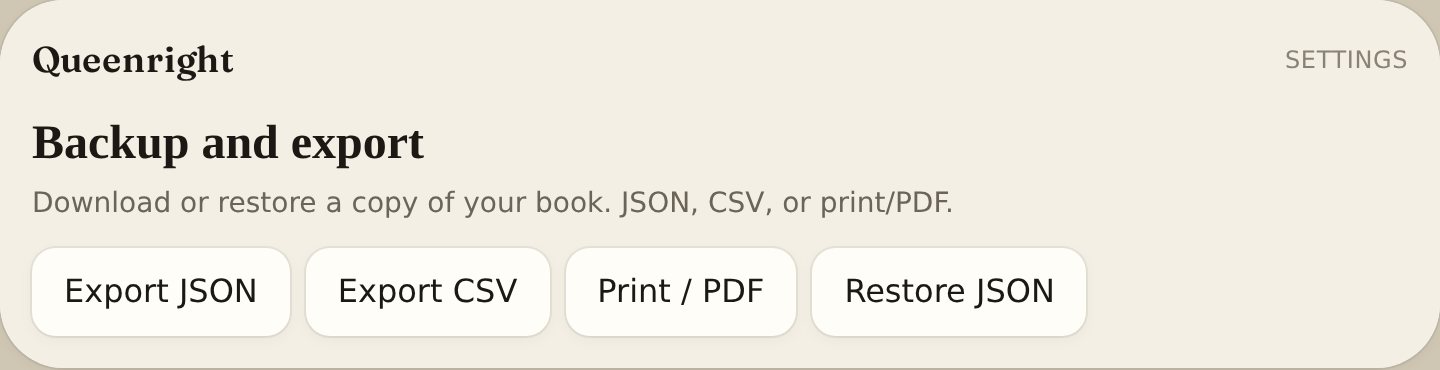
On Yard, download JSON for a full restore, or export CSV / PDF for a spreadsheet or printout. Restore JSON onto the same account if you need to rebuild. That file is yours — Queenright does not email it. Settings can nudge you every 7, 14, or 30 days.
Bring a yard from another app
Restore JSON only accepts a Queenright backup. HiveTracks, HiveTool, BeePlus, and similar exports will not load as-is. Photos, voice memos, and sensors are not in the file. Restore replaces the yards on that signed-in account — it does not merge.
- 1Export CSV or JSON from the other app.
- 2Map it into Queenright’s shape. Dates are YYYY-MM-DD. Hive type and status must be Queenright values (for example langstroth-10, queenright).
- 3The file must include “app”: “queenright” or you’ll see “That file is not a Queenright backup.”
- 4On Yard, tap Restore JSON and confirm.
Easiest: Export JSON from Queenright once, use that file as a template, then paste in the other app’s colonies.
{
  "app": "queenright",
  "version": 2,
  "exportedAt": "2026-08-23T16:00:00.000Z",
  "climate": "subtropical",
  "yards": [
    {
      "name": "Home yard",
      "location": "Fort Pierce, FL",
      "notes": null,
      "lat": 27.45,
      "lng": -80.33,
      "forage_miles": 2,
      "hives": [
        {
          "name": "Maple",
          "hive_type": "langstroth-10",
          "status": "queenright",
          "queen_year": 2025,
          "queen_marked": true,
          "queen_color": "yellow",
          "queen_source": "local",
          "frames_of_bees": 16,
          "boxes": 2,
          "established_on": "2025-03-01",
          "notes": null,
          "inspections": [],
          "harvests": [],
          "treatments": []
        }
      ]
    }
  ],
  "tasks": [],
  "traps": []
}
Working without signal
Read the last yard. Queue looks. Upload when you’re back.
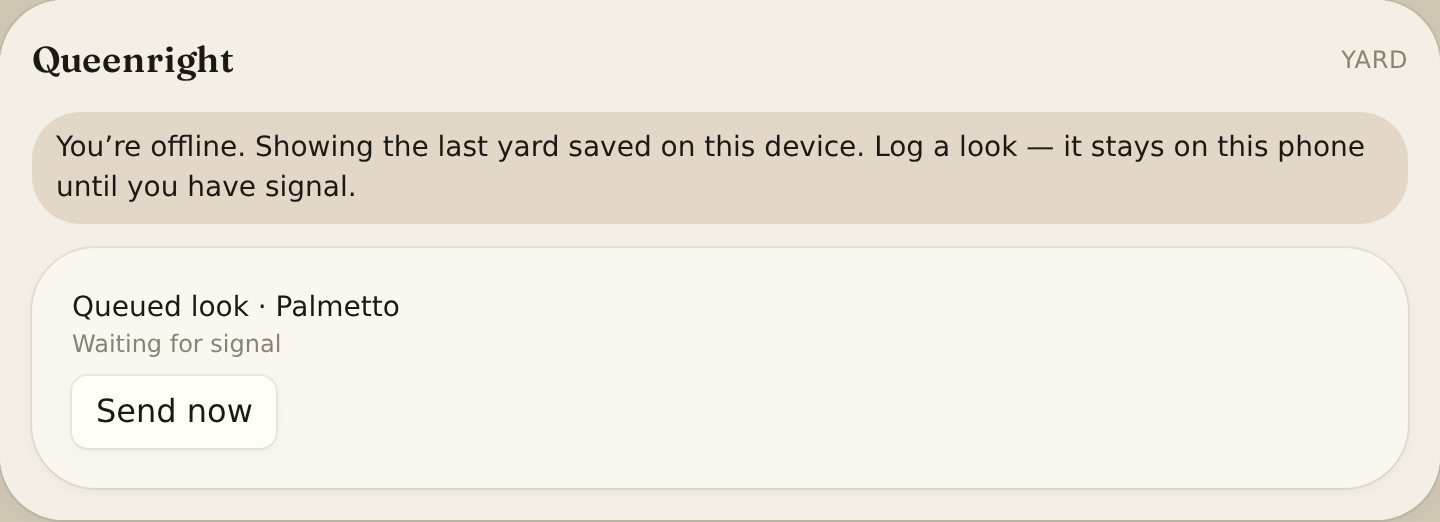
After you load the yard once, a snapshot stays on the phone. Log an inspection with no bars — it sits in a queue on that device until Queenright can send it. Voice memos never leave the phone. Map tiles and live sensors need a connection the first time.
Where your data lives
Three places, on purpose.
- Cloud (your account) — yards, hives, inspections, harvests, treatments, photos, traps, sharing. This is the real book.
- Cache on the phone — last snapshot so you can read offline.
- This device only — queued inspections and voice memos. Clearing site data removes those, not the cloud yard.
Sign in on another phone and the cloud book is there. Memos are not — record those again, or file them before you switch devices.
Privacy and terms
Yard pins, apiary numbers, and photos are theft-sensitive. Read the statement before you drop a pin.
- 1Open Privacy. Location is the first heading — pins are for your map, not a public directory.
- 2Helpers only see yards you invite them to. Sharing a field card or a photo is something you start.
- 3Open Terms for the account, helpers, field sheets, and that Queenright is not veterinary or legal advice.
- 4The same links sit on Sign in and in Settings.
Always free
Queenright stays free. All of it.
Every feature is included. There is no trial, no subscription, and no paywall later — including after your yards are set up and running.
If you use Swarm Sauce Ultimate Honey Bee Swarm Lure, this is our thank-you. You do not need to buy anything to use Queenright.
©2025-2026 Swarm Sauce, LLC - Swarm Sauce® and Queenright® are copyright and registered trademarks of Swarm Sauce, LLC. All Rights Reserved. First use in commerce 10/01/2025.